
Microsoft 365 - How do I give feedback on Microsoft 365?
Microsoft would love to hear from you about what's working well, what's not, and any ideas for improvements including possible new features and functions. Your input will help Microsoft improve the user experience for you and all Microsoft 365 users worldwide.
Important: If you are experiencing an issue/problem, please contact DoIT Help Desk.
How to give great feedback
Whether you're providing feedback directly in an application or website, through the Feedback portal, or in the Windows Feedback Hub, there are some simple steps you can take to make your feedback as strong as possible.
- If you use a community feedback experience, Microsoft prioritizes feedback that high volumes of our users are experiencing or requesting. You can see if feedback you want to provide already exists. Search to browse existing feedback to see if your feedback was mentioned by someone in the community. It's possible that you have the same feedback as someone else. You can add your voice to the existing feedback rather than creating a copy of it. If you can't find feedback like yours, it's time to add new feedback.
- When providing feedback to Microsoft, it's important that you keep your comments specific to a single item at a time. Product teams are continuously reading feedback, and when we see similar feedback from different users, we try to combine it to see the full impact to our user base. Providing feedback about a single item at a time helps us to link similar feedback together.
- If you're experiencing an issue, try to describe the steps you took that caused that issue to occur. It's great to know if the problem is intermittent or happens every time, so our product teams can take a look at it and try to reproduce the problem. If you're using Windows Feedback Hub and your diagnostic settings allow it, you can use the "Recreate my problem" feature to attach screenshots and diagnostic logs as you reproduce the issue you're facing. Typically, more details are better. If an app crashes every time you perform an action, mention this in your description.
- Whenever you provide feedback, remember not to provide any identifiable information such as phone numbers or email addresses, and make sure to avoid leaving personal information in any screenshots you attach. Other users can see feedback submitted on community platforms, and you wouldn't want to expose personal data.
- When you're finished submitting your feedback, you can log into the Feedback portal to view feedback you previously sent to Microsoft and see the status of that feedback. If you provided feedback on Windows Feedback Hub, you can open the app and view your My Feedback section to see the status of your feedback.
Sending feedback from within an application
There are many places you can provide feedback to Microsoft. Within an application, you might be able to enter the Help or Feedback menu and find the Send feedback button, which opens a form to provide your feedback to Microsoft.
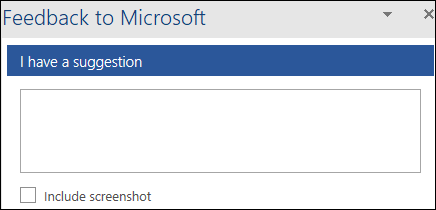
Depending on the platform and application, you might be able to submit more logs and screenshots. These are helpful for the product teams at Microsoft to understand your feedback, so please include screenshots and logs when possible.