
Using PaperCut Mobility Print (Windows)
How to use PaperCut Mobility Print to print documents directly from your laptop
NOTE: You need to be on campus WiFi to use this feature
2. You should see a page like this:

Click "Download"
3. Run the downloaded file
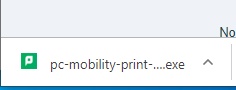
4. Click "Yes" to allow this app to make changes to your device
5. Select a language and click "Ok"
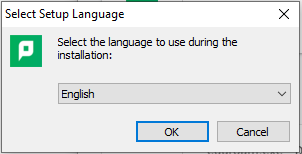
6. Read and accept the license agreement, and click "Next"
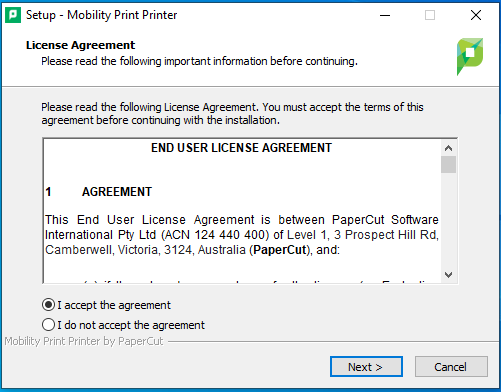
Setup will now detect printers that are available to to you.
7. Select which printers you would like to be able to print to, and click next.

8. Enter your NetID Username and Password, and click Next. Setup will now install the printers you selected on your computer
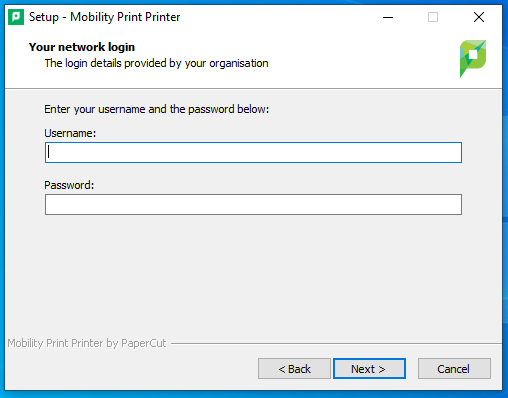
9 Click "Finish" to exit setup. When you go to print a document, you should see all of the printers you installed as options to print to.
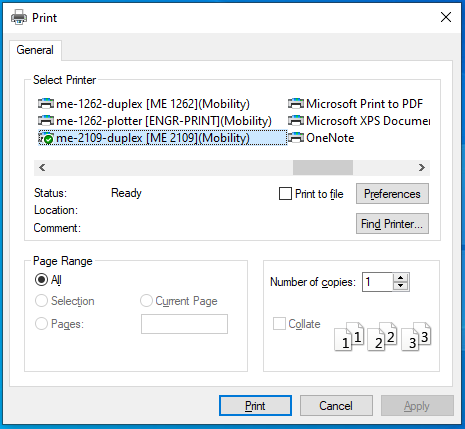
Note: Once you click "Print", your print job will be held in a print queue. Directions to release it to the printer can be found here: https://kb.wisc.edu/cae/55354