
Windows - DOS Commands
| Windows 9x/2000/XP/Vista UNSUPPORTED |
NOTE: Windows 95/98, Windows Me, Windows 2000, Windows XP, and Windows Vista are no longer supported by the Help Desk. We can only provide best effort support. If we are unable to resolve your Windows 9x/2000/XP/Vista issue, you may be able to find help in Microsoft's Knowledge Base. These products are no longer actively supported by Microsoft. No further development will take place on these products and security updates are no longer issued. It is highly recommended that you upgrade to Windows 10 or 8. |
Summary
DOS (Disk Operating System) was the first widely-installed operating system for IBM-compatible personal computers. DOS is a non-graphical line-oriented command-driven computer operating system. It has a relatively simple--but not overly "friendly"--user interface.
The earliest versions of the Microsoft Windows operating system were really just applications that ran on top of the MS-DOS operating system. Modern versions of Windows (Windows 95 and greater) no longer run on top of DOS, but do retain a DOS-like user interface called the "MS-DOS Prompt" or "Command Prompt". The command prompt allows Windows users to issue DOS commands to the system.
DOS commands are useful to Windows users for a variety of reasons. Many tasks that can be performed in the Windows graphical environment can be performed much more quickly and efficiently by utilizing DOS commands. Also, most bootable floppy disks will boot the system directly to a DOS environment.
Description
Users of any Windows system can invoke a command prompt by performing the following steps:
- Click Start.
- Select Run.
- In the "Open:" field, type command.
- Click OK.
A command prompt window is generally white or gray text on a black background. The prompt itself usually takes the following form:
X:\PATH>
where "X" represents the letter of the active drive, and "PATH" refers to the present working directory. Here's an example of how a DOS command prompt commonly looks:
C:\Windows>_
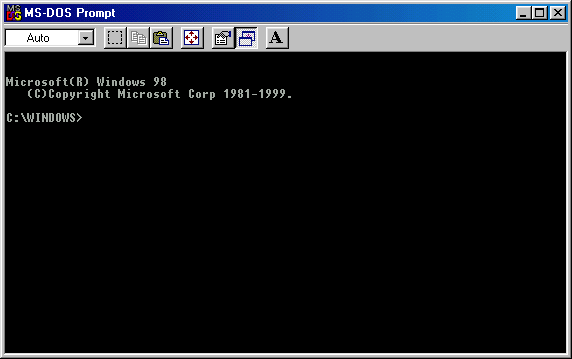
Commands are typed and echoed to the screen at the cursor's location. Usually commands consist of a keyword, followed by optional flags, followed by a path. More will be explained about syntax and additional flags under each specific command.
Important Information
- Note: Some of these commands can cause damage to your system if used improperly. Please use with caution. Files that are deleted with DOS Commands are permanently deleted.
- Some of these commands will not work with Windows NT, 2000, XP or with certain boot disks.
- Quick reference information for any of the following commands can be displayed by adding the /? flag after the command. (i.e. dir /? will display information about the syntax and options of the DIR command).
- Any of the flags or paths listed in square brackets-[] are optional--all others are required.
- The *(asterisk) character is used as a wildcard in DOS. For example, *.txt refers to all files that have the extension "txt". *.* refers to all files in the current directory.
- Note: Windows supports long filenames and allows spaces in file names. DOS does not, so when a filename is longer than 8 characters, DOS will truncate the file name to an abbreviated form that is 8 characters long. For example, the folder "Program Files" is displayed in DOS as "Progra~1".
- If a command cannot be found, it may be because the command is not in the DOS path. The path refers to the directories in which DOS will look for commands. Typing path at a DOS prompt will display the current DOS path. A new path can be defined by typing the command Path [directories], where [directories] refers to the series of directories for the path. Directory names should be separated by the semicolon character (;).
ATTRIB
ATTRIB displays or changes file attributes such as read only, hidden, system, and archive. ATTRIB is necessary to use most other commands that do not work when some of these attributes are set.
Note: ATTRIB is in all version of Windows, but may not run unless it is located in the command Path. Please see the note of Paths above. The actual file is called attrib.exe and is located on Windows 98 and ME in the C:\Windows\Command directory, on Windows NT and 2000 in the C:\Winnt\system32, and on Windows XP in the C:\Windows\system32 directory.
Syntax
ATTRIB [+R | -R] [+A | -A] [+S | -S] [+H | -H] [[drive:][path]filename] [/S]
- + sets an attribute
- - clears an attribute
- R is the read-only file attribute
- A is the archive file attribute
- S is the system file attribute
- H is the hidden file attribute
- /S processes files in all directories in the specified path
Examples
- attrib autoexec.bat show the attributes of the autoexec.bat file
- attrib +r autoexec.bat makes the autoexec.bat so it cannot be modified until the read only attribute is taken off
- attrib +h config.sys hides config.sys from a normal directory listing; however, hidden files are always visible to the ATTRIB command
- attrib -h config.sys does the opposite of the previous command: instead of hiding the file, it will unhide it if currently hidden
CD
CD changes the current directory.
Syntax
- CD [drive:][path]
- CD[..]
Examples
- cd \: Changes current directory to the highest level of the current drive (the root directory)
- cd ..: Goes up one directory
- For example, if you are within the C:\WINDOWS\COMMAND> directory, this would take you to C:\WINDOWS>
- cd windows changes to the Windows subdirectory of the current directory (if it exists)
- For example, if you are within the C:\WINDOWS\COMMAND> directory, this would take you to C:\WINDOWS>
Note: If you want to change to a different drive, CD will not switch to it; CD only changes directories in the current drive. To change drives, type the drive letter followed by a colon (i.e., cd d: will not switch to the d drive, but d: will switch drives).
COPY
COPY copies one or more files to another location.
Note: See note on DOS vs. Windows file names above. If trying to copy files longer than eight characters, DOS will truncate them with normal COPY. Also, COPY will not move all files; it will leave Hidden and System files alone. Use XCOPY instead to solve both of these issues.
Syntax
COPY [/A | /B] source [/A | /B] [+ source [/A | /B] [+ ...]] [destination] [/A | /B]] [/V] [/Y | /-Y]
- source specifies the file or files to be copies
- /A indicates an ASCII text file
- /B indicates a binary file
- destination specifies the directory and/or filename for the new file(s)
- /V verifies that new files are written correctly
- /Y suppresses prompting to confirm you want to overwrite an existing destination file
- /-Y causes prompting to confirm you want to overwrite an existing destination file
To append files, specify a single file for destination, but multiple files for source (using wildcards or file1+file2+file3 format).
Examples
- copy *.* a:: This would copy all files in the current directory to the floppy disk in drive a:
- copy autoexec.bat c:\windows: Copies autoexec.bat from the current directory to the Windows directory of the C: drive
- copy file1.txt+file2.txt+file3.txt newfile.txt /v: This would add together (concatenate) file1.txt, file2.txt, and file3.txt and store the results in newfile.txt, then verify that it copied correct.
DELETE
DELETE deletes one or more files.
Syntax
DEL [drive:][path]filename [/P]
- [drive:][path]filename: Specifies the file(s) to delete, and specifies multiple files by using wildcards
- /P: Prompts for confirmation before deleting each file
Examples
- del test.tmp: Deletes test.tmp from the directory you are currently in (if it exists)
- del c:\windows\test.tmp: Deletes test.tmp from the C:\Windows directory (if it exists)
- del c:\windows\temp\*.* /P: Deletes all files in the C:\Windows\temp directory and requires confirmation for each file
DELTREE
DELTREE deletes a directory and all the subdirectories and files in it.
Note: DELTREE is in all version of Windows with the exception of Windows NT, 2000, and XP; however, it may not run unless it is located in the command path. Please see the note on Paths above. The actual file is called deltree.exe and is location in the C:\Windows\Command directory.
Syntax
DELTREE [/Y] [drive:]path [[drive:]path[...]]
- /Y suppresses prompting to confirm you want to delete the subdirectory
- [drive:]path specifies the name of the directory you want to delete (more then one path can be specified)
Note: Use DELTREE cautiously. Every file and subdirectory within the specified directory will be deleted. Once deleted you cannot recover the information.
Examples
- deltree c:\windows\fake010 deletes the fake010 directory and everything in it
DIR
DIR displays a list of files and subdirectories in a directory.
Syntax
DIR [drive:][path][filename] [/P] [/W] [/A[[:]attributes]] [/O[[:]sortorder]] [/S] [/B] [/L] [/V]
- [drive:][path][filename] Specifies drive, directory, and/or files to list.
- /P Pauses after each screenful of information.
- /W Uses wide list format.
- /A displays only files with these attributes:
- D Directories
- R Read-only files
- H Hidden files
- A Files ready for archiving
- S System files
- - Prefix meaning not: can be added to above attributes
- /O List by files in sorted order, sortorder:
- N By name (alphabetic)
- S By size (smallest first)
- E By extension (alphabetic)
- D By date & time (earliest first)
- G Group directories first
- A By Last Access Date (earliest first)
- - Prefix to reverse order: put in front of above
- /S Displays files in specified directory and all subdirectories
- /B Uses bare format (no heading information or summary)
- /L Uses lowercase
- /V Verbose mode
Examples
- dir: Lists all files and directories in the directory that you are currently in
- dir /s: Lists the files in the directory that you are in and all sub directories after that directory
- dir /p: If the directory has a lot of files and you cannot read all the files you can use this command and it will display all files one page at a time
- dir /w: Lists just the files and directories, going horizontal, and taking as little as space needed
- dir /a:-s: This would list all the files that aren't system files in the current directory
MKDIR
MKDIR creates a directory.
Syntax
- MKDIR [drive:]path
- MD [drive:]path
Examples
- md test creates a directory called test inside the current directory
MOVE
MOVE moves files and renames files and directories.
Syntax
To move one or more files: MOVE [/Y | /-Y] [drive:][path]filename1[,...]destination
To rename a directory: MOVE [/Y | /-Y] [drive:][path]dirname1 dirname2 [drive:][path]
- [drive:][path]filename1 specifies the location and name of the file or files you want to move (multiple files separated by a comma)
- [drive:][path]Destination specifies the new location of the file; destination can consist of a drive letter and colon, a directory name, or a combination
- [drive:][path]dirname1 specifies the directory you want to rename
- dirname2 [drive:][path] specifies the new name of the directory
- /Y suppresses prompting to confirm creation of a directory or overwriting of the destination
- /-Y causes prompting to confirm creation of a directory or overwriting of the destination
Examples
- move c:\windows\temp\*.* c:\temp moves all files from the C:\Windows\temp folder to the C:\temp folder
- move /Y c:\temp temp2 moves the C:\temp directory and all contents to the C:\temp2 directory and suppress confirmation
PING
PING is used to determine if a connection exists between your computer, and another computer connected via TCP/IP. It sends small packets of information to the other computer, which are returned if the connection is found or lost otherwise. PING is a powerful utility to help determine network related problems.
Syntax
ping [-t] [-a] [-n count] [-l size] [-f] [-i TTL] [-v TOS] [-r count] [-s count] [[-j host-list] | [-k host-list]] [-w timeout] destination-list
- -t pings the specified host until stopped.
- Control-Break shows statistics and continues
- Control-C stops
- -a resolves addresses to hostnames
- -n - count shows the number of echo requests to send
- -l - size sends buffer size
- -f sets a Don't Fragment flag in packet
- -i TTL shows Time To Live
- -v TOS shows the type of service
- -r count shows the record route for count hops
- -s count shows the timestamp for count hops
- -j host-list is the loose source route along host-list
- -k host-list is the strict source route along host-list
- -w timeout is the timeout in milliseconds to wait for each reply
Examples
- ping localhost pings the localhost (127.0.0.1); this determines whether the ethernet card is able to send and receive data (note that this does not send information over a network, so its main use is troubleshooting network card problems)
- C:\>
- ping localhost
- Pinging 127.0.0.1 with 32 bytes of data:
- Reply from 127.0.0.1: bytes=32 time<10ms ttl=128
- Reply from 127.0.0.1: bytes=32 time<10ms ttl=128
- Reply from 127.0.0.1: bytes=32 time=1ms ttl=128
- Reply from 127.0.0.1: bytes=32 time=1ms ttl=128
- Ping statistics for 127.0.0.1:
- Packets: sent=4, received = 4, lost = 0 (0% loss)
- Approximate round trip times in milli-seconds:
- Minimum = 0ms, maximum = 1ms, average = 0ms
- Pinging 127.0.0.1 with 32 bytes of data:
- ping xxx.xxx.xxx.xxx allows you to ping another computer where the xs are located are where you would place the IP address of the computer you are attempting to ping; if this is not able to complete, this should relay back an unsuccessful message (request timed out) which could be an indication of cable issues, network card issues, hub issue, etc.
- ping helpdesk.doit.wisc.edu can be used to see if computer is connected to the internet by sending a packet to a known web site (in this case the DoIT Helpdesk page)
- C:\>
- ping helpdesk.doit.wisc.edu
- Pinging helpdesk.doit.wisc.edu[144.92.9.69] with 32 bytes of data:
- Reply from 144.92.9.69: bytes=32 time=2ms ttl=254
- Reply from 144.92.9.69: bytes=32 time=1ms ttl=254
- Reply from 144.92.9.69: bytes=32 time=2ms ttl=254
- Reply from 144.92.9.69: bytes=32 time=1ms ttl=254
- Ping statistics for 144.92.9.69:
- Packets: sent=4, received = 4, lost = 0 (0% loss)
- Approximate round trip times in milli-seconds:
- Minimum = 1ms, maximum = 2ms, average = 1ms
- Pinging helpdesk.doit.wisc.edu[144.92.9.69] with 32 bytes of data:
REN
REN renames one or more files/directories.
Syntax
REN [drive:][path][directoryname1 | filename1] [directoryname2 | filename2]
Note: You cannot specify a new drive or path for your destination. You can only rename files in the same directory.
- [drive:][path]filename1 is the source file to rename
- [drive:][path]directoryname1 is the source directory to rename
- filename2 is the new name of the file
- directoryname2 is the new name of the file
Examples
- ren c:\chope hope renames the directory chope to hope
- ren *.txt *.bak renames all text files to files with a .bak extension
- ren 1_ renames all files to begin with 1_ (the asterisk (*) in this example is a wild character; this means all files)
RMDIR
RMDIR removes (deletes) a directory.
Syntax
- RMDIR [drive:]path RD [drive:]path
Examples
- rmdir c:\test removes the test directory if empty
TRACERT
The TRACERT command is very similar to ping and is used to visually see a network packet being sent and received as well as the amount of hops required for that packet to reach its destination. It shows exactly how far a packet can go before it fails. This will help discern whether the connection problem is close or more toward the destination.
Syntax
tracert [-d] [-h maximum_hops] [-j host-list] [-w timeout] target_name
- -d does not resolve addresses to hostnames
- -h - maximum_hops is the maximum number of hops to search for target
- -j - host-list is the loose source route along host-list
- -w - timeout is the wait timeout milliseconds for each reply
Examples
The following is an example when we used tracert on helpdesk.doit.wisc.edu. As you can see in the below example, we had a very short list/time to get the packet to its destination because we are so close to the web server.
- tracert helpdesk.doit.wisc.edu
- Tracing route to helpdesk.doit.wisc.edu [144.92.9.69] over a maximum of 30 hops:
- 1 <10 ms <10 ms <10 ms 144.92.124.1
- 2 <10 ms <10 ms <10 ms helpdesk.doit.wisc.edu [144.92.9.69]
- Trace complete
- Tracing route to helpdesk.doit.wisc.edu [144.92.9.69] over a maximum of 30 hops:
Here is another tracert to Google.com, a much further destination.
- tracert.www.google.com
- Tracing route to google.lb.google.com [216.239.37.100] over a maximum of 30 hops:
- 1 <10 ms <10 ms <10 ms 144.92.124.1
- 2 <10 ms <10 ms <10 ms r-peer.net.wisc.edu [144.92.128.131]
- 3 <10 ms <10 ms <10 ms UWMadisonISP-atm0-0-252.core.wiscnet.net [216.5 .1.17]
- 4 <10 ms <10 ms 10 ms UWMilwaukeeISP-atm1-0-1.core.wiscnet.net [140.1 9.8.2]
- 5 40 ms 40 ms 40 ms aads.above.net [206.220.243.71]
- 6 40 ms 30 ms 51 ms core1-core2-oc3-2.ord1.above.net [209.249.0.129]
- 7 40 ms 50 ms 50 ms core2-ord1-oc48.ord2.above.net [208.185.0.202]
- 8 50 ms 60 ms 60 ms lga1-ord2-oc48.lga1.above.net [208.185.156.158]
- 9 80 ms 80 ms 81 ms iad1-lga1-oc48-2.iad1.above.net [216.200.127.61]
- 10 90 ms 80 ms 90 ms core2-iad1-oc48.iad4.above.net [208.185.0.134]
- 11 80 ms 90 ms 80 ms main2colo1-core2-oc12.iad4.above.net [208.185.0 70]
- 12 61 ms 70 ms 60 ms 64.124.113.173.available.google.com [64.124.113 173]
- 13 60 ms 70 ms 60 ms 216.239.47.26
- 14 91 ms 100 ms 100 ms www.google.com [216.239.37.100]
- Trace complete
- Tracing route to google.lb.google.com [216.239.37.100] over a maximum of 30 hops:
XCOPY
XCOPY is a powerful version of the copy command with additional features. It has the ability to move files, directories and even whole drives from one destination to another. It also can preserve file attributes and long file names.
Note: XCOPY is in all versions of Windows, but may not run unless it is located in the command Path. Please see the note on Paths above. The actual file is called xcopy.exe and is located on Windows 98 and ME in the C:\Windows\Command directory on Windows NT and 2000 in the C:\Winnt\system32 and on Windows XP in the C:\Windows\system32 directory.
Syntax
XCOPY source [destination] [/A | /M] [/D[:date]] [/P] [/S [/E]] [/W] [/C] [/I] [/Q] [/F] [/L] [/H] [/R] [/T] [/U] [/K] [/N]
- source specifies the file(s) to copy
- destination specifies the location and/or name of new files
- /A copies files with the archive attribute set but doesn't change the attribute
- /M copies files with the archive attribute set and turns off the archive attribute
- /D:date copies files changed on or after the specified date (if no date is given, copies only those files whose source time is newer than the destination time)
- /P prompts you before creating each destination file
- /S copies directories and subdirectories except empty ones
- /E copies directories and subdirectories, including empty ones
- /W prompts you to press a key before copying
- /C continues copying even if errors occur
- /I: if destination does not exist and copying more than one file, assumes that destination must be a directory
- /Q does not display file names while copying
- /F displays full source and destination file names while copying
- /L displays files that would be copied
- /H copies hidden and system files also
- /R overwrites read-only files
- /T creates directory structure, but does not copy files (does not include empty directories or sub directories; /T /E includes empty directories and sub directories)
- /U updates the files that already exist in destination
- /K copies attributes (normal xcopy will reset read-only attributes)
- /Y overwrites existing files without prompting
- /-Y prompts you before overwriting existing files
- /N copy using the generated short names
Examples
- xcopy h:\*.* /a /e /k copies everything located on the H drive to the current drive
- xcopy c:\windows\desktop c:\desktop /a /e /f /h /k copies all files and folders in the C:\Windows\Desktop folder to the C:\Desktop folder
More information on these commands can be found at Computer Hope, which offers a more extensive list of commands.