

UW-Madison Zoom Workplace - Enable Automatic Zoom Desktop Updates
To help simplify the Zoom updates process you can turn on automatic updates. This setting is currently available for desktop Zoom on Windows and macOS systems.
How to turn on automatic updates
-
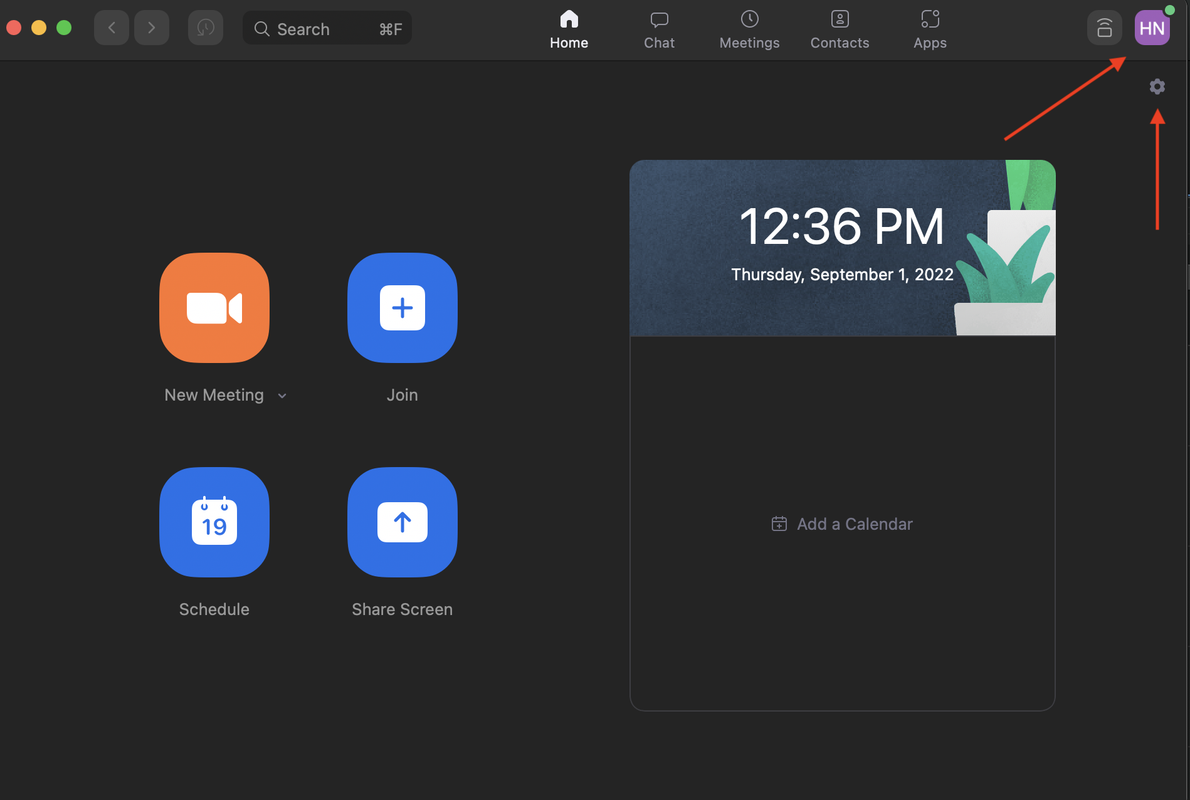
Navigate to settings by clicking on the icon in the top right corner and selecting Settings from the drop-down menu or clicking the Gear button on the home page.
-
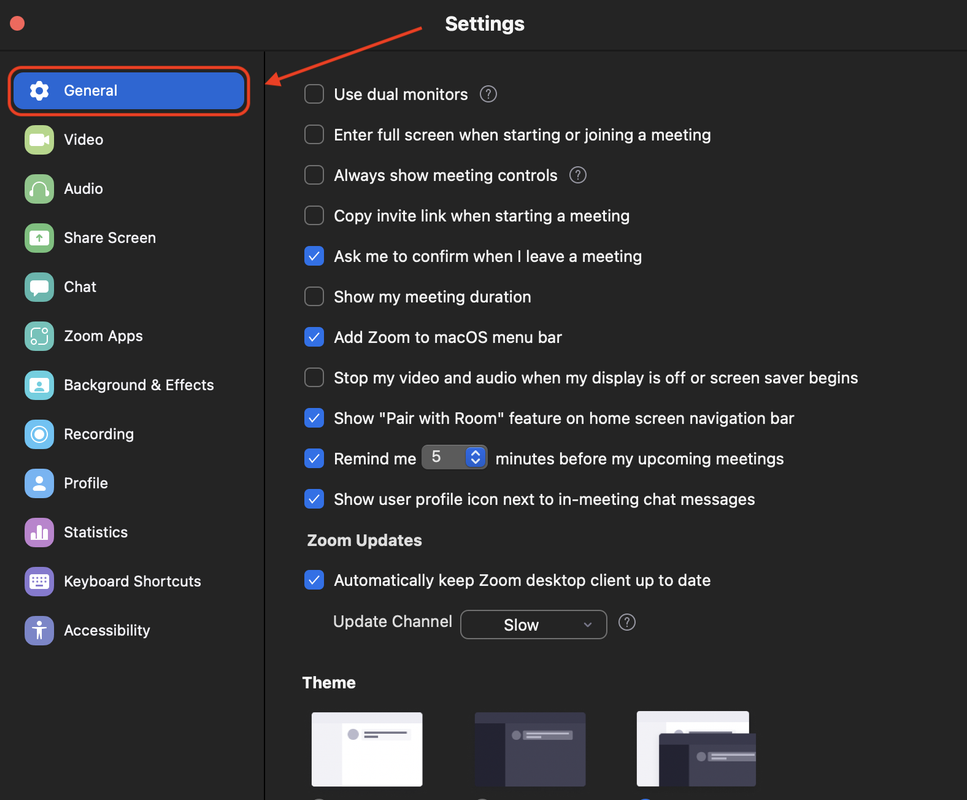
Select General from the sidebar to the right.
-
Check the box under Zoom Updates labeled Automatically keep Zoom desktop client up to date.
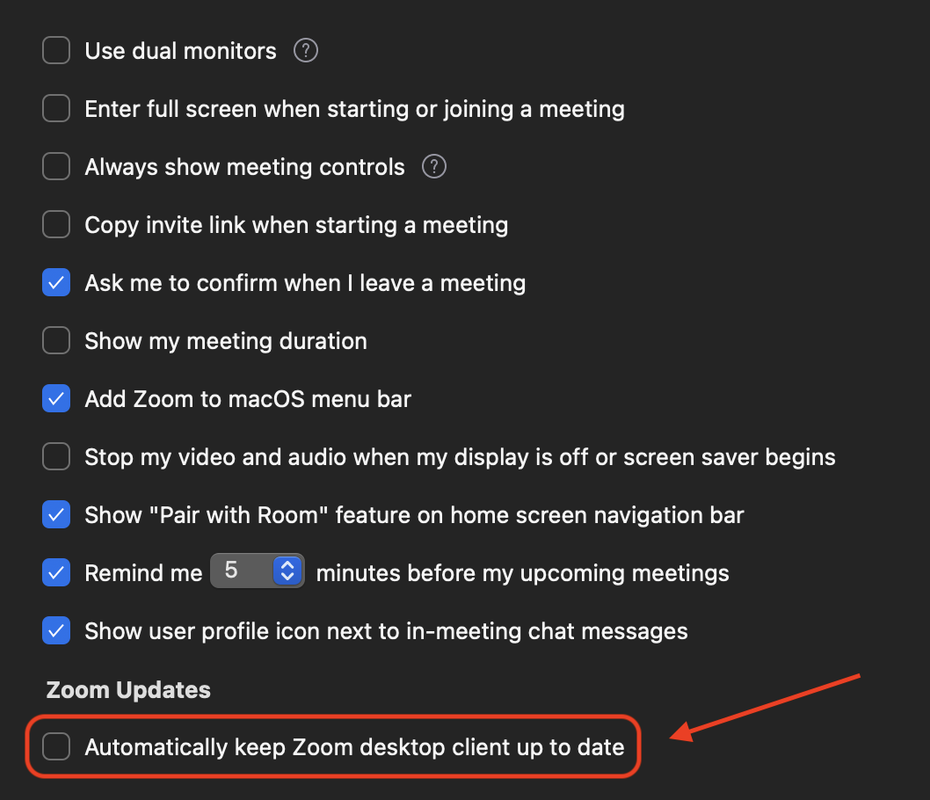
Once automatic updates are turned on, there is an additional drop-down menu that allows you to select between two update frequencies: slow and fast:
- Slow option: Default setting, as it provides less frequent updates and focuses on stability.
- Fast option: Notifies you about the latest features and updates as soon as they become available.
Note: Updates that are critical to security will go out to everyone, regardless of the frequency setting selected.