
WiscVPN GlobalProtect (Android) - Installing, Connecting, and Uninstalling
This document contains instructions for installing, connecting, disconnecting, and uninstalling the GlobalProtect VPN app on Android.
Downloading the GlobalProtect VPN App
-
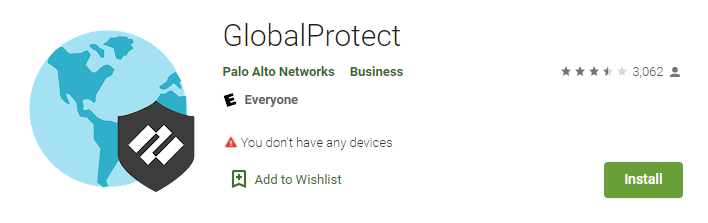
Launch the Google Play Store on your device.

- Search for GlobalProtect.
- Tap Install.
Connecting and Disconnecting from the VPN
Connecting to WiscVPN
- Once the GlobalProtect app is installed (see above), open the app.
- Tap OK to allow GlobalProtect to access all necessary information.
- Choose if you want to allow GlobalProtect to send you notifcations
- Note: GlobalProtect will notify you if your connection fails in the background. This will not happen if you do not allow notifications.
- Enter the WiscVPN portal address: uwmadison.vpn.wisc.edu. Then tap Connect.

- Enter your NetID and NetID password, then tap Sign In.

- Enter the MFA-Duo passcode from your key fob/Duo Mobile app, or enter "1" to receive a push notification.

- If prompted to allow connection, tap OK.

- The screen will display a green shield icon and a blue background to indicate that the VPN is connected.

Disconnect from the VPN
- Open the GlobalProtect app.
- Tap the green shield icon. It will turn gray and display "Tap to Connect".

Uninstalling the GlobalProtect VPN App
Uninstalling the App
See the Palo Alto documentation to uninstall the GlobalProtect App: Uninstall the GlobalProtect App for Android
Checking for and Deleting VPN Profile
The GlobalProtect app creates a "VPN profile" on your device. Deleting the GlobalProtect app will generally delete this profile as well. These instructions show how to manually delete a VPN profile from your device for troubleshooting purposes.
- Open the Settings app on your device.
- Open the Connections tab.

- Scroll down and tap More connection settings.

- Tap VPN.

- Tap the gear icon next to GlobalProtect.
- Note: If you do not see GlobalProtect, your VPN profile is already deleted.
- Select Delete VPN profile.

- Tap Delete to confirm.
If you experience any issues installing GlobalProtect or connecting to WiscVPN, please see WiscVPN GlobalProtect (Android) - Troubleshooting