Locating the Name of Your Computer

In many cases, a computer name is needed to perform in-depth troubleshooting. This document will help you locate your computer name, also known as the "hostname." Each section includes basic and advanced methods of lookup.

Windows

Windows 11

Windows 11 - Graphical Method

  1. Click on the Windows Start Button and select the Settings icon.

    Highlighted Settings gear icon in Windows Start menu.

  2. In the settings menu, click the System option in the left-hand bar. 
  3. At the bottom of the System page, select About on the right-hand pane.

    System, the first option in the left panel, and About, the last in the "System" page are both highlighted.

  4. Under the Device Specifications bar, you will find the device name under Device name.

    Highlighting the Device Name, the first option in About section.

Windows 10

Windows 10 - Command Line Method (Advanced)

  1. Move your cursor to the lower left corner of the screen until you see a small image appear. If you are currently viewing the Desktop, the windows icon () should be a shortcut to the Start screen.
  2. Right-click this box to reveal the Windows Quick Access Menu. Type Control Panel in the search box and select Control Panel in the results.
  3. Input System in the top-right search box and then click on See the name of this computer.
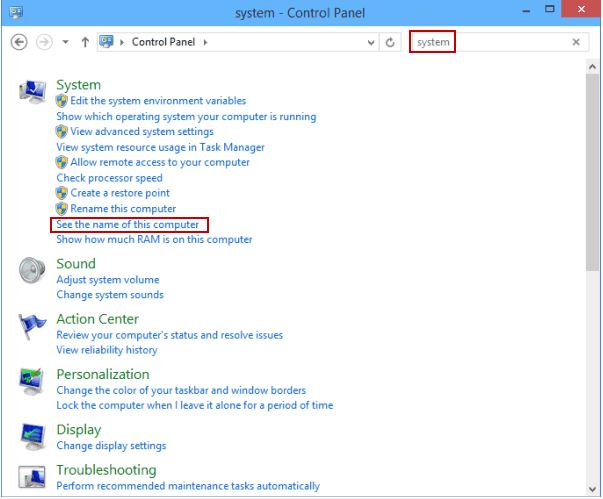
NameofcomputerWin10.JPG

    4. View the computer name or full computer name under Computer name, domain, and workgroup settings.
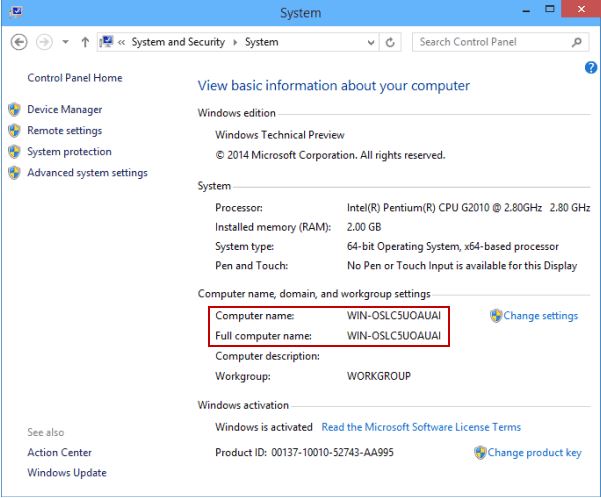
computernamewin10.JPG

Windows 10 - Graphical Method

  1. Click on the Start Menu (Windows Icon) startWin10.JPG in the lower left hand corner of your screen.
  2. Right-click on this box to reveal the Windows Quick Access Menu. Click into the search box at the bottom and type in Control Panel, then click on the top result.
Control Panel option in the Windows search results is highlighted.

     3. Open System and Security.

The first option, System and Security, is highlighted.

     4. Select System.

System is the third option in the System and Security page and is highlighted.

     5. The full computer name will be listed under the "Computer name, domain, and workgroup settings" section.

Computer Name is the second option below Computer name, domain, and workgroup settings.

Windows 8

Windows 8 - Command Line Method (Advanced)

  1. Move your mouse cursor to the lower left corner of the screen until you see a small image appear. If you are currently viewing the Desktop, this image should be a shortcut to the Start screen, and vice-versa:

    Start Button in the bottom left of the screen.
  2. Right-click on this box to reveal the Windows Quick Access Menu. Click on Command Prompt in this menu.

    Quick Access Menu with Command Prompt (the 9th option) highlighted.
  3. In the prompt, type the word "hostname" without quotes and hit enter.
  4. Your computer's name is the output of this command:

    Windows Command Prompt window with "hostname" typed and the resulting computer name displayed.

Windows 8 - Graphical Method

  1. Move your mouse cursor to the lower left corner of the screen until you see a small image appear. If you are currently viewing the Desktop, this image should be a shortcut to the Start screen, and vice-versa:

    Start Button in the bottom left of the screen.
  2. Right-click on this box to reveal the Windows Quick Access Menu. Click on System in this menu.

    Quick Access Menu with System (the 5th option) highlighted.
  3. The computer name will be listed beneath "Computer name, domain, and workgroup settings."

    Computer Name is the second option below Computer name, domain, and workgroup settings.

Windows 7

Windows Vista/7 - Command Line Method (Advanced)

  1. Go to Start > Programs > Accessories > Command Prompt.
  2. In the prompt, type the word "hostname" without quotes and press enter.
  3. Your computer's name is the output of this command:

    Windows Command Prompt window with hostname entered and the resulting computer name displayed.

Windows Vista/7 - Graphical Method

  1. From the Start menu, right-click on Computer and choose Properties from the menu.

    Properties is the last option in the pop-up menu.
  2. The computer name will be listed beneath "Computer name, domain, and workgroup settings."

    Computer name is the first item listed under Computer name, domain, and workgroup settings.

Windows XP

Windows XP - Command Line Method (Advanced)

  1. Go to Start > Programs > Accessories > Command Prompt.
  2. In the prompt, type the word "hostname" without quotes and press enter.
  3. Your computer's name is the output of this command:

    Windows Command Prompt with hostname entered and the resulting name displayed.

Windows XP

  1. Right-click on My Computer from either the Desktop or Start Menu, and choose Properties.

    Properties is the last option in the pop-up menu from My Computer.
  2. Click on the Computer Name tab at the top of the window. Your computer's name is listed next to "Full computer name."

    Full computer name is listed as the second item under Computer description.

Mac OS X

Mac OS X

Mac OS Ventura

  1. Click on the Apple Logo in the upper left-hand corner of your screen.
  2. Click “About this Mac”.
  3. Click on the 'More Info' button
  4. The name of your Computer will be displayed here.

Mac OS X - Graphical Method

  1. On OS X machines, go to the Apple menu > System Preferences.
  2. Go to the Sharing preference pane.

    Under the Internet & Wireless section, the Sharing folder icon is highlighted as the last option.
  3. Your hostname is in the "Computer Name" field:

    Computer Name is displayed first and is editable with the Edit button in the bottom right..

Mac OS X - Command Line Method (Advanced)

  1. With Finder focused, go to the Go menu > Utilities > Terminal.
  2. In the terminal, type the word "hostname" without quotes and hit enter.
  3. Your hostname is the output of the hostname command:

  4. Terminal Window with hostname entered and the output computer name highlighted.


Keywords:
hostname computer name windows mac win7 win8 osx 10.6 10.7 10.8 snow leopard mountain lion device 
Doc ID:
28127
Owned by:
Help Desk KB Team in DoIT Help Desk
Created:
2013-01-15
Updated:
2026-06-17
Sites:
DoIT Departmental Support, DoIT Help Desk, DoIT Staff, University of Illinois System