
Transferology Lab - User Guide

Overview
Transferology Lab is an extension of Transferology designed to support the needs of staff at colleges and universities that are part of the network. In the Lab, users review and manage student interest, access advising resources such as equivalency information, and optimize their institution's transfer-friendliness by fine-tuning equivalency and profile data. Administrators can also use the Lab to create, update, or deactivate Lab users. Any UW–Madison faculty or staff member who needs access to Transferology will use the Transferology Lab extension.
Transferology Lab does not have equivalencies for every course from every institution. If you do not see an equivalent, that doesn't mean that the course isn't transferable; it simply means that it has not been reviewed yet.
Table of Contents
- How To Get Access
- Log In
- View Course Equivalencies
- View UW Course Equivalents at Transfer Institutions/Reverse Look-Up
- View a Course that satisfies a Requirement such as Breadth, Level or General Education
- More Information and Support
How To Get Access
For faculty and staff attempting to access Transferology Lab:
-
If you were directed to Transferology Lab because an email said an account was created for you:
- Follow the link in your email and create a password to complete your account setup.
-
If you did not receive an email to set up a Transferology Lab account:
- Click "Request Lab Account" under the Log In button at TransferologyLab.com.
-
Enter the required information. Be sure to use your preferred@wisc.edu email address.
-
Wait for an administrator to approve your account.
-
Follow the email sent to the email address you used to verify and attempt to log in.
Log In
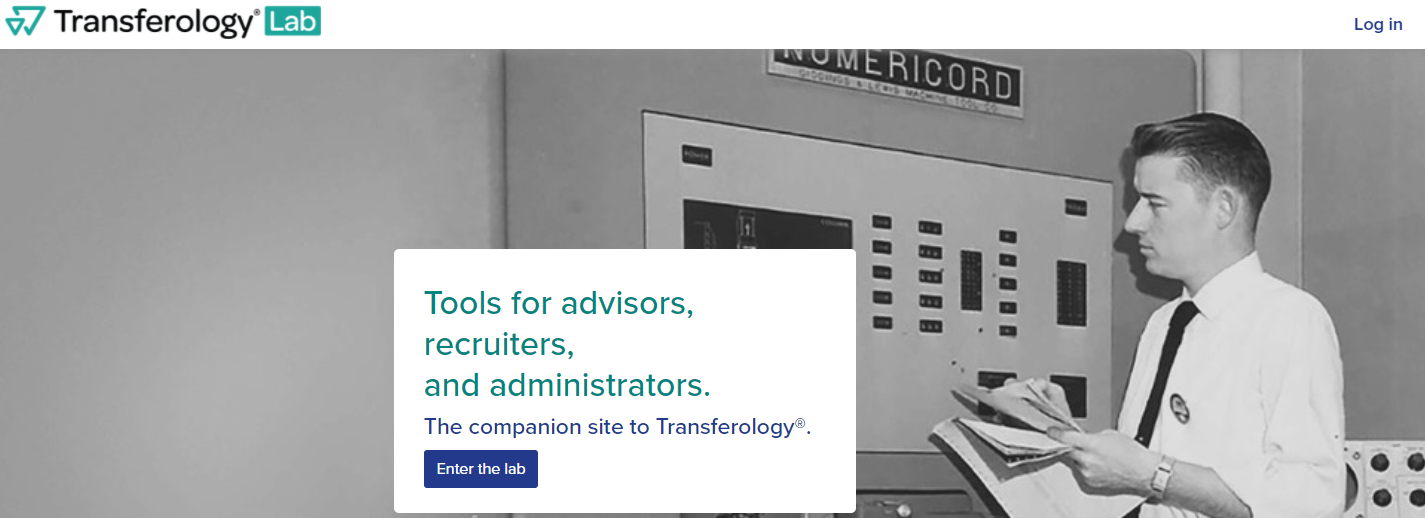
- Navigate to TransferologyLab.com
- Select "Log in" at the top right or Enter the lab.
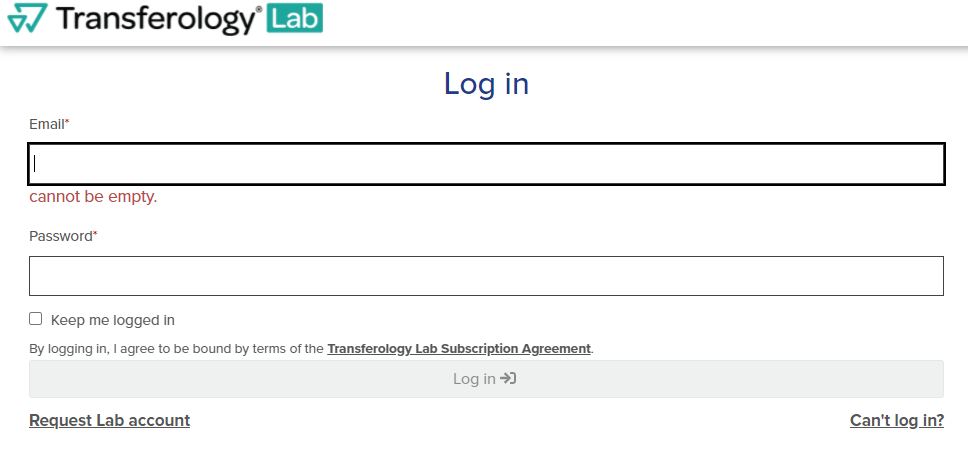
- The username is the UW email. If you do not remember your password, select "Can't log in." If you do not have a lab account, select "Request Lab Account." Transferology Lab accounts are available for faculty and staff. If you use TES, the login credentials are the exact same as Transferology Lab. If you change your password in either tool, it will change your password for both tools.
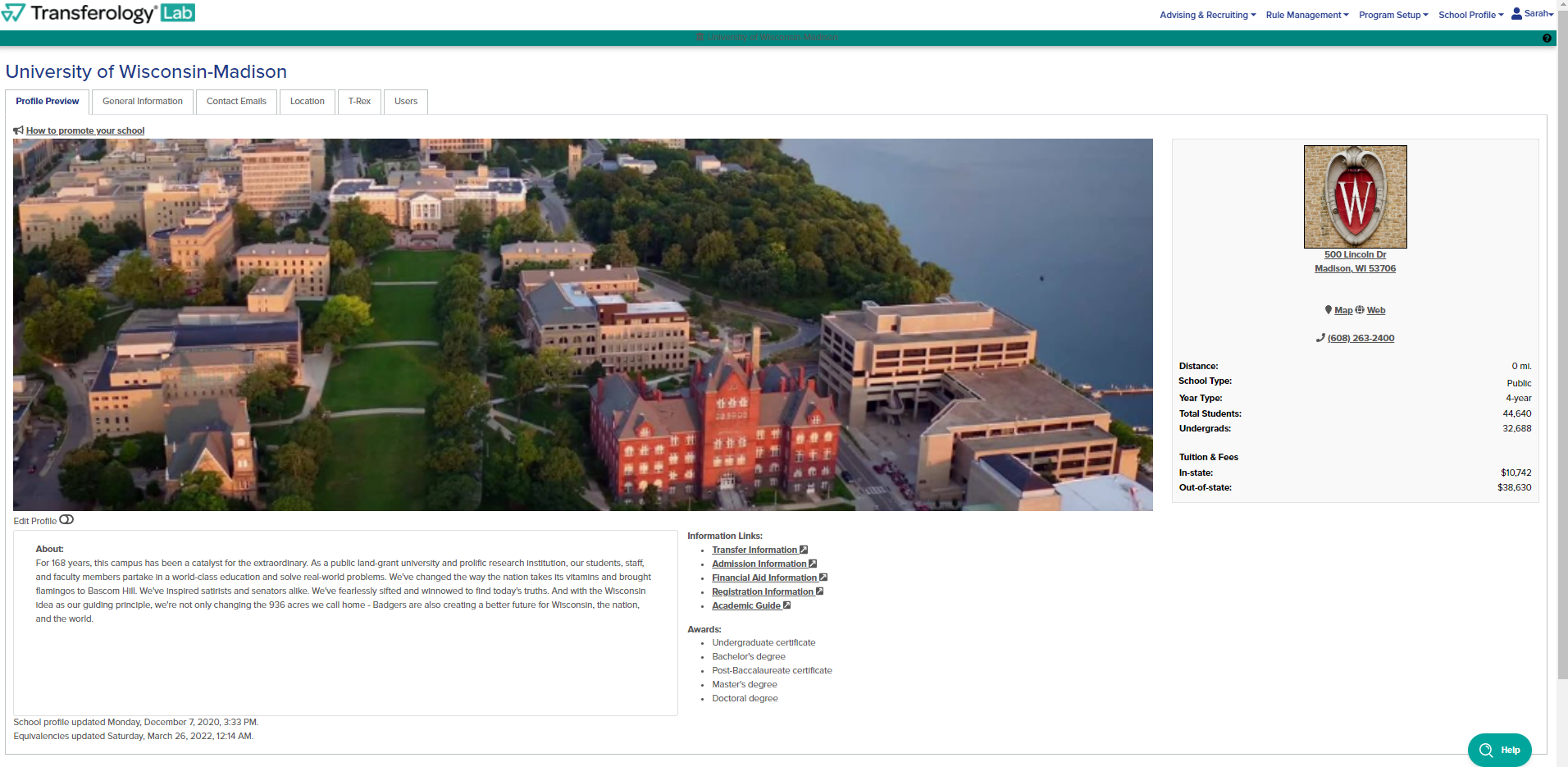
- Once logged in, you will be taken to the home page.
View Course Equivalencies
This feature is used to view how courses at other institutions transfer to UW–Madison.
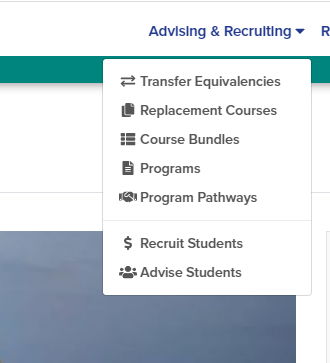
- On the upper-right side of the screen, select "Advising & Recruiting," then select "Transfer Equivalencies" from the drop-down menu.
- The "Transferring To" institution will default to UW–Madison. Leave this default as-is to verify how courses will transfer to UW–Madison. The "Transferring To" institution can be changed by typing in the box to see how UW–Madison's courses transfer to another institution that uses Transferology.
- The "Filter" on the right side will default to Wisconsin institutions. The filter can be changed to another state or "All Locations" for all institutions. The institutions appear in alphabetical order. Search for a specific institution by typing the name in the "Transferring From" box.

- Select the green magnifying glass button to view the equivalencies for that institution.
- The default setting is the first department alphabetically at that institution. Select the box to choose a specific department or view all equivalencies.

- The transfer course appears on the left side of the page. The transfer course department and number must match exactly to the course at the transfer institution for the equivalency to be valid. When two courses are grouped together indicated by "and," both courses must be completed in order to receive the equivalency. If there is a date after the course title, it indicates when the equivalency began. This does not indicate when the course was last reviewed. Course equivalencies seen in TransferologyLab are active equivalencies with an end date in the future.

-
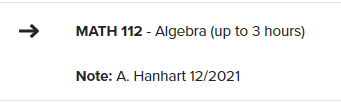
The UW equivalent appears on the right side of the page. After the course title, it indicates how many credits may be earned for the course. Elective credits are hyperlinked with breadth and level information. Scroll over the hyperlink to view the attributes.
-
“AdminUse TBD” is a temporary equivalent we use to signify that we have already received a request for this course to be evaluated and are working with the corresponding department to assign an appropriate equivalent. Once the department has indicated how it should transfer, the equivalent will be updated and will reflect how the course will transfer.

Beneath the UW equivalent, there are notes that indicate when the course was last reviewed. If there are no notes, then the course hasn't recently been reviewed. Students should not submit reevaluations for courses that were recently reviewed.
- The results may be printed or exported by selecting the corresponding button.

- Select "Return to Search" to return to the list of institutions.
Video How-To
Video Transcript
This is a demonstration on how to use Transferology Lab for faculty and staff at UW–Madison. So you will go to transferologylab.com. You can select “Log in” up here, or “Enter the lab.” That will bring you to the login page. Use your wisc[.edu] email and the password that you have set up. This is not necessarily the same password as your NetID unless you have it set up that way. If you can't log in, you don't remember your password, select “Can't log in?” If you do not currently have a Lab account, “Request Lab account” and fill out your information. The request will be sent to the Credit Evaluation Services team and we will provision an account for you. This again is only for faculty and staff. This is not for students. Students will use just transferology.com.
So you’ll select log in. This will bring you to the main page, it has some information, some different links. And then the resource that you'll be using is at “Advising & Recruiting” “Transfer Equivalencies.” So this will default to transferring to UW–Madison. The default filter is Wisconsin. And then it will have Wisconsin institutions listed alphabetically. So you can scroll to find the institution you would like, or you can search for it in this search bar. If you are looking for a school in Illinois or a different state, the filter has to be to that state or to all locations to view that institutions. So at any point you can clear the filters and select all locations or select a different state that you would like to view.
So we will be looking at UW-Eau Claire equivalencies. So once you know what institution, you will select this green eye magnifying glass, and that will bring UW Eau Claire’s equivalencies. So it defaults to the first department alphabetically at the other institution and then the UW–Madison courses. So we will look at the chemistry department. So on the left hand side is the UW-Eau Claire, so the transfer institution, courses with their course abbreviations number and course name. If it does have a date after it, that is when the equivalency is started. So this rule starts in August 2005. If it doesn't have one, it's still an active rule, it just doesn't have the begin date available. This does not mean this was when it was last reviewed; this is the date that the rule is active for. And then on the right hand side is the UW–Madison courses and how the course transfers. So CHEM100 will transfer as CHEMX15 for the elective credits. You can hover over it and it will tell you the breadth, level, general education, and L&S credit. There are some direct equivalents that will also have some notes associated with them, so this is the Universal Credit Transfer Agreement note per UW System policy. The rest of the direct equivalents will not have notes with their breadth or level currently on there. Then you'll see that this one has two courses listed. So CHEM105 and CHEM106 must be both taken to be awarded CHEM103. So you'll see that there's CHEM105 separately, CHEM106 separately, but this has that both of the courses must be taken for that equivalency to be awarded. In the top right hand, you can export this to an Excel file by clicking on the “Export” [button]. You can also print this as well. After you've looked through the equivalencies that you are interested in, the courses that you're interested in, you will click “Return to Search” and that will bring you back to view all the institutions.
If there's a different department in that institution that you would like to look at, you can select the other department and look over those course equivalencies as well.
And then once you are done, you will go up to your name and select log out.
View UW Course Equivalents at Transfer Institutions
This feature is used to find a list of courses at other institutions that are equivalent to a specific UW–Madison course.
- On the upper-right side of the screen, select "Advising & Recruiting," then select "Replacement Courses" from the drop-down menu.
- The school name will default to University of Wisconsin–Madison. Do not change the school name if the intention is to transfer the course back to UW.
- Enter the UW–Madison department.

- Select the UW–Madison course by using the green magnifying glass button on the right.

- Once a UW–Madison course is selected, Transferology Lab will populate a list of transfer courses that are a direct equivalent to the UW–Madison course. Transfer institutions can be filtered by state or all locations. Please note the default is for Wisconsin. The results will show the institutions where there is a transfer course, listed on the left side, that transfers as the UW course. The course department and number must match exactly in order for the equivalency to be valid. The presence of a transfer equivalent does not confirm that the course is currently offered at the transfer institution.
- If you are looking for a specific institution, search for it in the search bar. The filter must be set to the state where the institution is or to all locations.

- The state can be changed to any state or All Locations will provide results for all states by using the filter on the right. The filter can also be set by distance from a zip code. Once the filter criteria are set, select "Apply."

- If you are looking for a specific institution, search for it in the search bar. The filter must be set to the state where the institution is or to all locations.
- Results may also be emailed by selecting the "Email these results button", and completing the form.
- Select "Return to Search" to choose another UW–Madison course.
Video How-To
Video Transcript
This is a demonstration on how to use the Replacement Course or reverse lookup feature in TransferologyLab.
TransferologyLab is this site designed for faculty and staff. Students would use transferology.com.
So you’ll go to transferologylab.com, select either “Log in” or “Enter the lab,” and then you'll enter your wisc[.edu] email address and your password. This is the password that you've set up. It's not necessarily the same password as your NetID, unless you have it set up that way. If you can't log in, you don't remember your password, select “Can't log in?” If you need a Lab account, select “Request Lab account.” Your information will be sent to the Credit Evaluation Services team and we can provision an account for you. Then select log in.
This will bring you to the home page that has some different information down here and some different links. And then you'll select “Advising & Recruiting” and “Replacement Courses.” So Replacement Courses is the tool to look up to see which institutions offer the equivalent to a UW–Madison course. So you need to know which UW–Madison course you're looking for. So you will enter the department in here. So if we're looking for chemistry, look up chemistry, and then this will bring up the UW–Madison chemistry courses in numerical order. So if we want to see which institutions offer the equivalent to CHEM103, we would select the magnifying glass on the right hand side, and then the automatic filter is for Wisconsin institutions but you can filter by distance, so if there's specific distance, a student wants to take the class near their home, and so they can enter the zip code in, and then select which distance they want. And you can also select which states that you would like to take a course in. And so those are your two different options. And you can also select all locations if it doesn't matter which institution or which area, state you're taking the course in. Once you select that, you would select “Apply,” so it will remain on Wisconsin which is the default.
So this will bring up the courses that are at another institution that transfer as CHEM103. So you'll see Carroll University in Wisconsin, CHE109 comes over as CHEM103. It'll give you the distance from the zip code as well, if that's important. If it lists a date here, that is when the rule has started, so that's when the equivalency is started. If it doesn't list a date, it's still an active equivalency, it does not mean that is when the equivalency was last reviewed. And so you can scroll to see if there's a specific institution and if there is also a specific institution that you were looking for, you can look and see, like if you want to go to UW-Eau Claire, to see which course, so they have a CHEM103 and CHEM105 and CHEM106. Both would need to be taken to get to CHEM103. And so if it lists two, both courses need to be completed to be awarded the equivalent. The course must match exactly, so it must be exactly CHEM103 at UW-Eau Claire. If the department has changed and maybe it's just CH103 now, that equivalency is not valid. It would need to match exactly how it is on Transferology. This does not guarantee that UW-Eau Claire or the institution is offering the course, but it's just that this is the current equivalency that we have.
You can also email these results, so if you select the email, you can email them to yourself, you can email them to a student, email them, and you can add some additional information if you would like. And then you can also include your contact information.
If there's another course that you would like to look for, you would select “Return to Search” and then select either that same department or if there's a different department that you wanted to review, you could look up that to see. So if we want to see which institutions offer NUTRI SCI 132, select and then it will bring those up. Again, the default is Wisconsin, but you could change to any state or all locations. Select “Apply” and then it will give you the institutions that currently have an equivalency for that.
Once you are done, you will just select your name and select “Log out.”
View a Course that Satisfies a Requirement such as General Education, Breadth of Level
- On the upper-right side of the screen, select "Advising & Recruiting," then select "Replacement Courses" from the drop-down menu.
-
The school name will default to University of Wisconsin–Madison. Do not change the school name if the intention is to transfer the course back to UW.
-
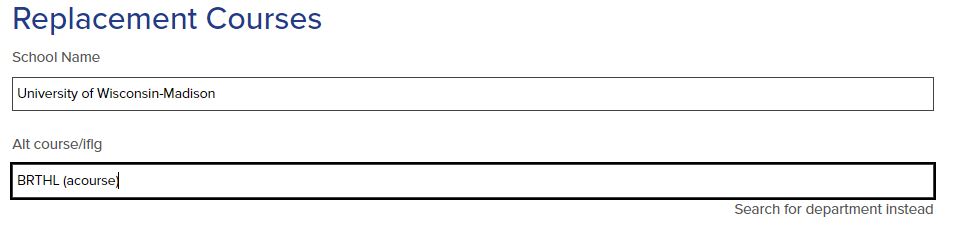
Select "search by alt course or lflg Instead".
-
Use the following codes to search for a specific breadth, level or general education requirement.
BRTHB: Breadth: Biological Science
BRTHH: Breadth: Humanities
BRTHL: Breadth: Literature
BRTHN: Breadth: Natural Science
BRTHP: Breadth: Physical Science
BRTHS: Breadth: Social Science
BRTHW: Breadth: Either Social or Natural Science
BRTHX: Breadth: Either Humanities or Natural Science
BRTHY: Breadth: Either Biological or Social Science
BRTHZ: Breadth: Either Humanties or Social Science
CREDC: Counts for Liberal Arts & Science credit
ETHNETHNICST: Gen Ed: Ethnic Studies Requirement
FLNGFL1: World Language: First Semester
FLNGFL2: World Language: Second Semester
FLNGFL3: World Language: Third Semester
FLNGFL4: World Language: Fourth Semester
FLNGFL5: World Language: Fifth Semester or beyond
GECOMA: Gen Ed: Communications Part A
GECOMB: Gen Ed: Communciations Part B
GEQR-A: Gen Ed: Quantitative Reasoning Part A
GEQR-B: Gen Ed: Quantitative Reasonsing Part B
LEVLA: Level: Advanced
LEVLE: Level: Elementary
LEVVI: Level: Intermediate
-
Select the magnifying glass on the right to search for any course with the designated course attribute.

-
Transferology Lab will populate a list of transfer courses that carry the selected course attribute. Transfer institutions can be filtered by state or all locations. Please note the default is for Wisconsin. The results will show the institutions where there is a course that transfers with the course attribute. Please note the transfer equivalency may be an elective; however, it will still satisfy the course attribute selected.The course department and number must match exactly in order for the equivalency to be valid. The presence of a transfer equivalent does not confirm that the course is currently offered at the transfer institution.
- If you are looking for a specific institution, search for it in the search bar. The filter must be set to the state where the institution is or to all locations.
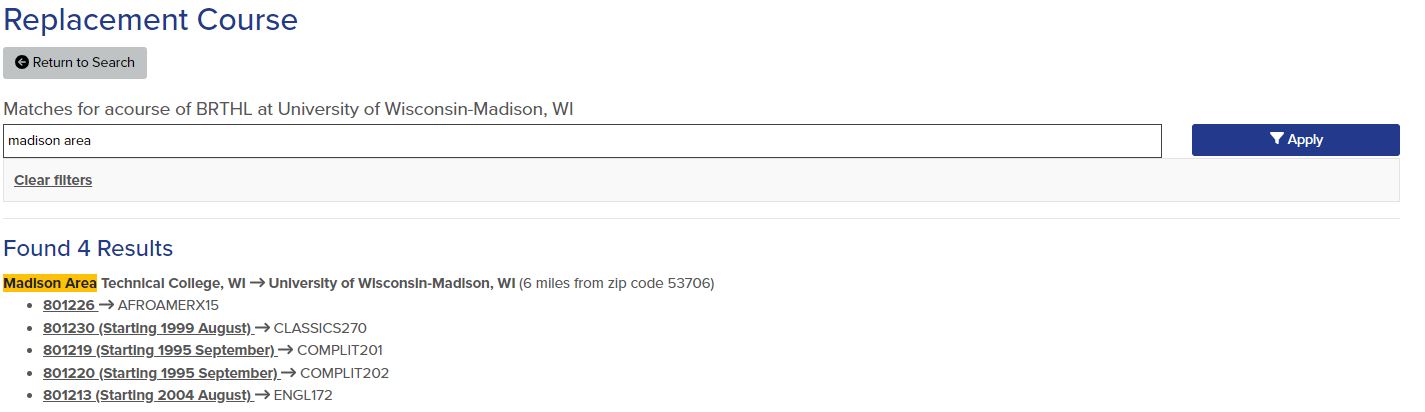
- If you are looking for a specific institution, search for it in the search bar. The filter must be set to the state where the institution is or to all locations.
- Please note that many courses carry more than one attribute, such as level and breadth; however, Transferology only allows for searching on a single attribute.
- Results may also be emailed by selecting the "Email these results" button and completing the form.
- Select "Return to Search" to choose another UW–Madison course.
-
More Information and Support
Transferology Lab has extensive support documentation provided with the tool.
If you need help with Transferology Lab, email crediteval@registrar.wisc.edu.