
DARS/Faculty&Staff - A New DARS Request App - Request A Batch of DARS Audits

Overview
Below are the steps for requesting a batch of individual DARS audits for multiple students.
Log into the DARS Request App
- Go to https://dars.wisc.edu.
- Log in with your NetID.

Request a batch of individual DARS audits
Staff (faculty, advisors, authorized student workers) may request a batch of individual DARS audits by following these steps:
- Select the "Batch Reports" link near the top of the screen.

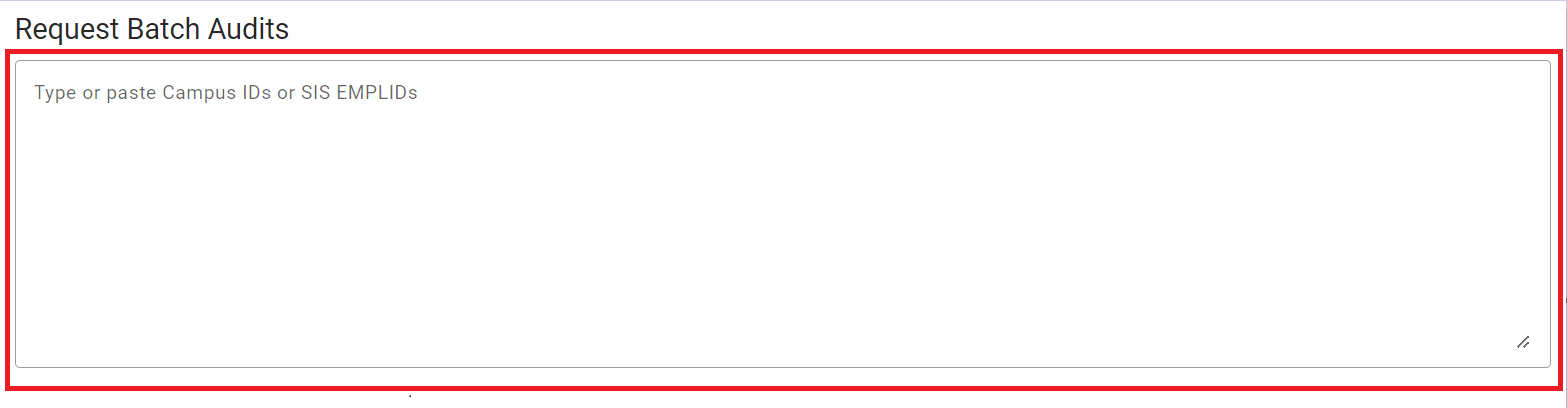
- Type or paste student Campus IDs or EMPLIDs into the textbox.
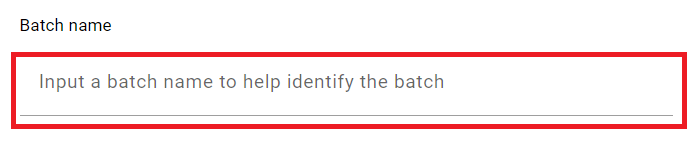
- If you would like to give your batch a name to more easily identify the batch, type the name into the "Batch name" field.
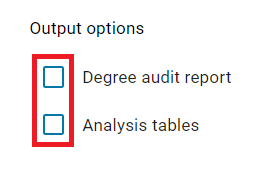
- Select from the available Output options (one or both may be selected).
- Select the School/College for your batch.

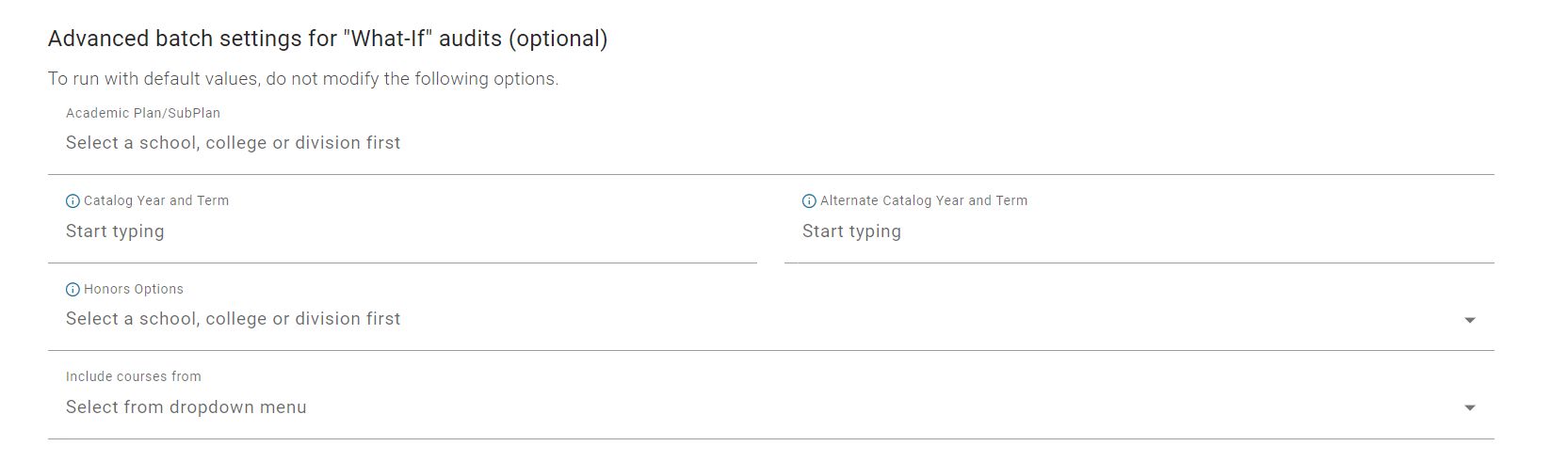
- Optional: Select from "Advanced batch settings" to determine the parameters for a batch of "What-If" audits. To run a batch of audits with default values, do not modify any "Advanced batch settings".
- Once you have selected your intended batch settings, click "Confirm".
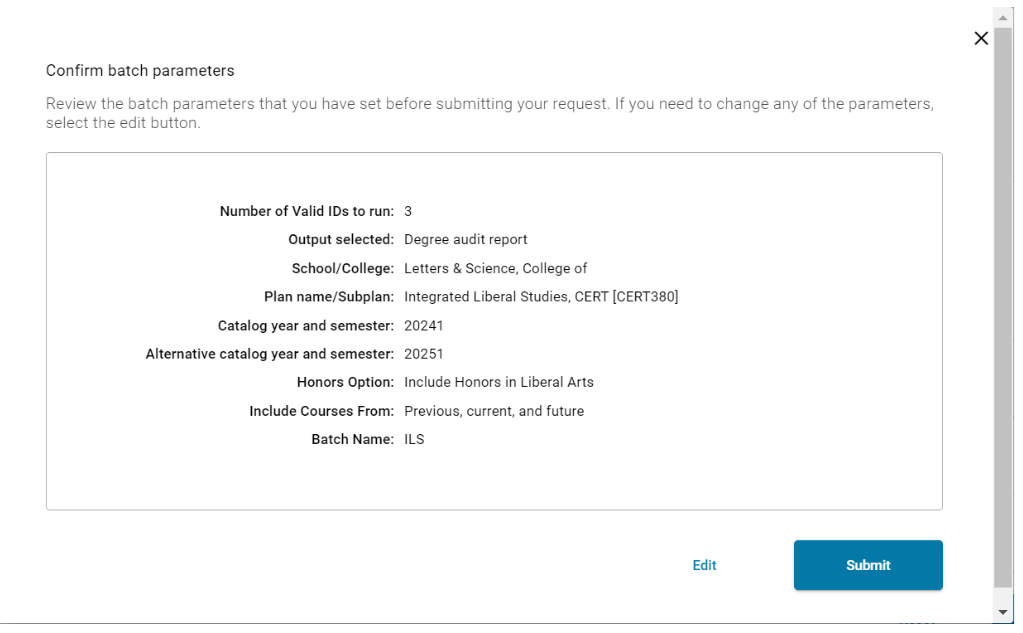
- Use the "Confirm batch parameters" window to confirm your settings and selections. You can select "Edit" if you need to make any changes.
- Once you have confirmed that all parameters are correct, click "Submit".
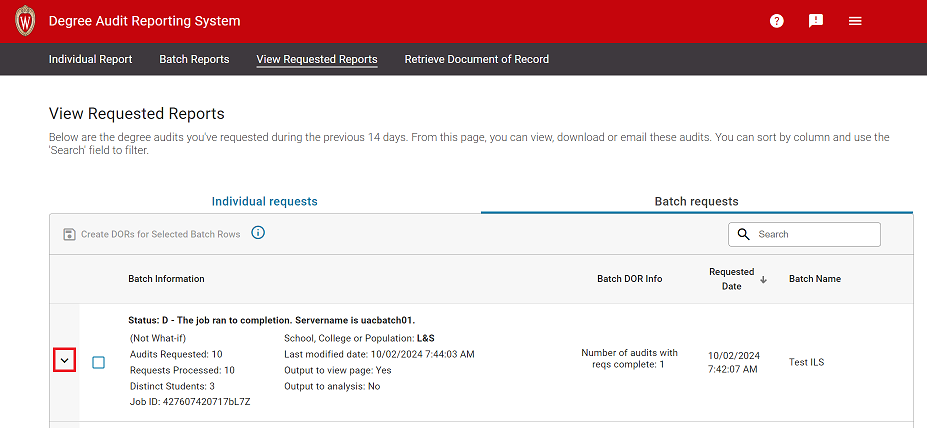
- Once you click "Submit", you will be redirected to the "View Requested Reports" page | "Batch requests" tab. Once your batch request(s) finish processing, click on the downward-facing arrow to the left to expand a specific batch.
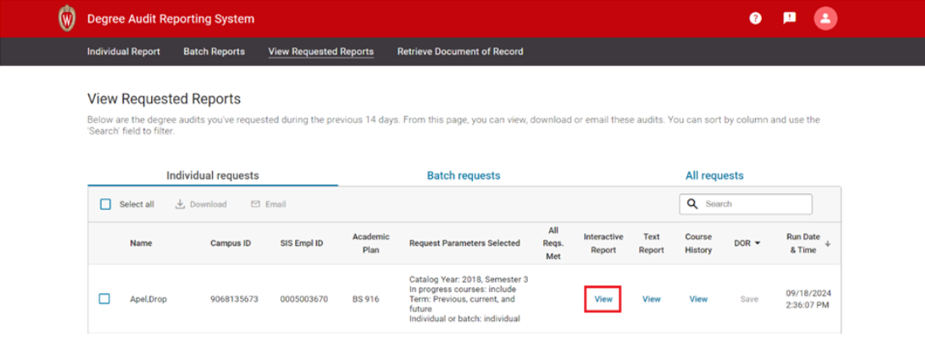
- To view an individual audit within the batch, find the desired report and click "View" for the report type of your choice.
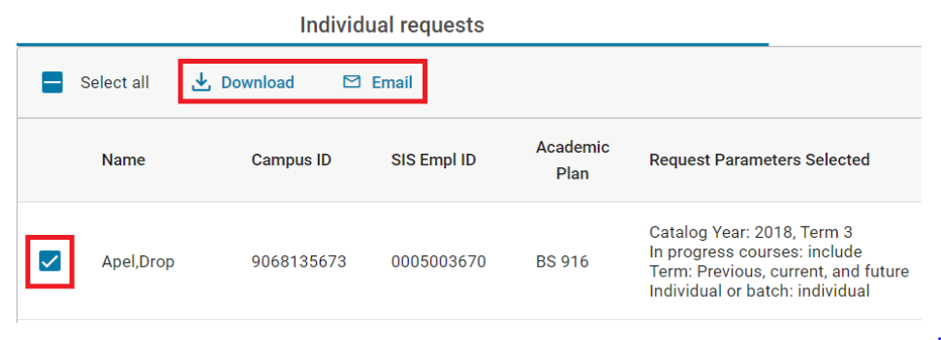
- If you wish to generate a PDF of an audit, select the checkbox next to the intended student's name and click "Download" or "Email" at the top of the request table. You can select as many audits as desired.
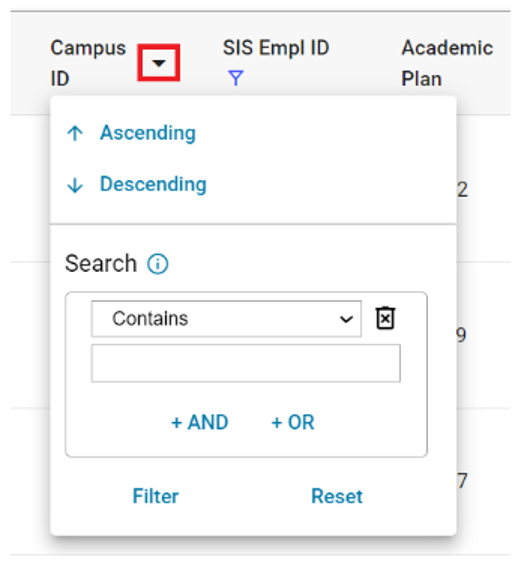
- Optional: If you wish, you can filter and/or sort audit results based parameters on each column in the table. Example:
If you have questions regarding the batch audit features or authorizations, contact dars@em.wisc.edu.