
Windows - Backing Up the Registry
| Potential for data loss | CAUTION: Please make sure your important data is backed-up to Bucky Backup or an external storage device (such as a CD, DVD, or external hard drive) before attempting this procedure. DoIT assumes no liability for data loss that occurs as a result of this procedure. |
Windows 7, 8, and Vista
-
Press Start to open the Windows Start menu.
-
Type regedit, and click on the program named regedit.exe. Note: For Windows 8 type regedit from the Metro screen, and hit Enter.
-
In the Registry Editor, make sure that Computer is selected.

-
Click File to open the drop-down menu, and then select Export...
-
Set a File name for your file, and change the Export range to All.

- Click Save.
Windows XP
-
Click Start to open the Start menu.
-
Then select Run...

-
In the Open text box, type regedit; then press Enter.
-
Click OK.

-
In the Registry Editor, make sure that My Computer is selected.

-
Click File to open the drop-down menu, and select Export...
-
Set a File name for your file, and change the Export range to All.

- Click Save.
Windows 10
-
Press Start to open the Start menu.
-
Type regedit, and click on the result named regedit.exe. Note: For Windows 8 type regedit from the Metro screen, and hit Enter.
-
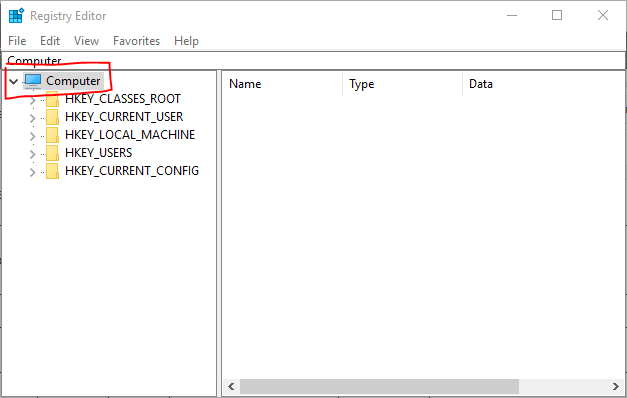
In the Registry Editor, make sure that Computer is selected.
-
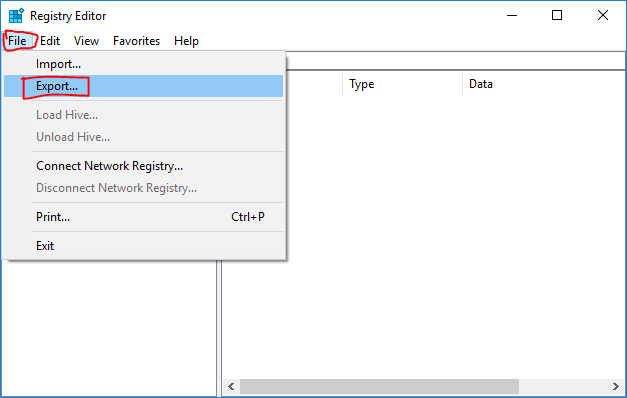
Click File to open the drop-down menu, and select Export...
-
Set a File name for your file, and change the Export range to All.
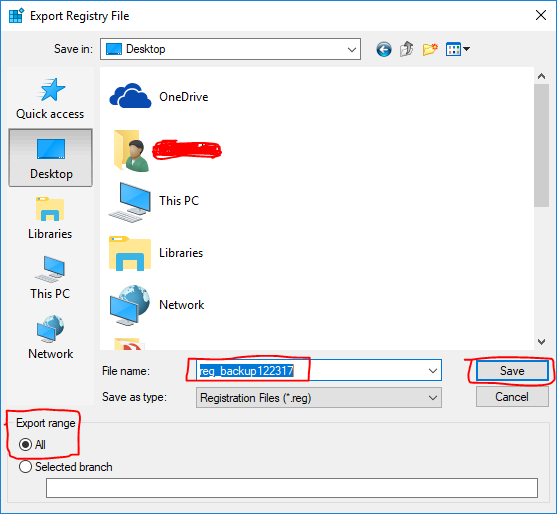
- Click Save.