
KB User's Guide - Stats Tab - Docs by Helpfulness Link and Scores
Helpful/ Unhelpful Setting
Each time a user visits a KB document on either Live Site, there is an opportunity to indicate whether the document is Helpful or Unhelpful by clicking on the corresponding button within the "Feedback" section at the bottom of the document.
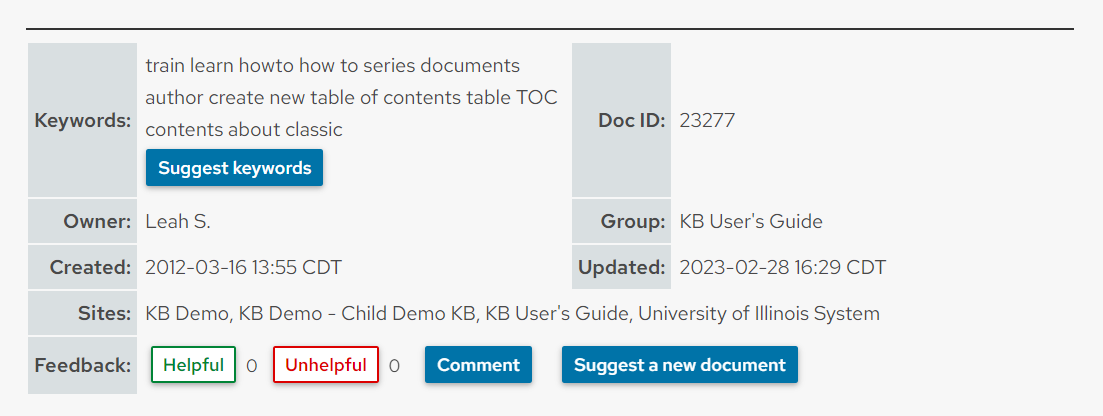
Should the user indicate that the document was not helpful, the number next to the Unhelpful button will reflect that.
After the Unhelpful button is clicked, a message will appear: "Thanks for your feedback. Please tell us why this page is unhelpful so we can better improve." Clicking on the tell us why links to the document feedback form where the user can express the improvements they would like to see.

View Monthly Breakdown of Helpfulness Scores
Helpfulness scores are recorded both on the document itself and on the Stats tab. Navigate to KB Admin Tools > Stats tab > Docs Helpfulness Sum link to see that screen.
If you do not see the Stats tab in the KB Admin Tools, contact your KB Group Admin to request access.
Use the provided search filters to filter by document ID, title, internal/external site, and year to view the desired subset of document helpfulness scores. The image below shows an example month by month breakdown for 2023.

To see more information on a particular document, click the document's corresponding More button within the helpfulness scores chart. This will lead you to the Doc Helpfulness Log screen, filtered for a particular document. See below for more information on the Doc Helpfulness Log.
View Detailed Helpfulness Score Logs
To view more in-depth information on helpfulness scores, including data on "when," "from where," and "by who," navigate to KB Admin Tools > Stats tab > Docs Helpfulness Log link.
If you do not see the Stats tab in the KB Admin Tools, contact your KB Group Admin and request access.
Use the provided search filters to filter by document ID, title, user, user IP, internal/external site, and year to view the desired subset of document helpfulness scores. This will lead to a results chart showing each individual helpfulness vote, including information on voters email address (if logged in), IP address, which site the vote was cast on (internal or external), and time of vote.
The image below shows and example of filtering for all helpfulness votes on one document (id=66407) that occurred in 2023.
- Note: User IPs are hidden in the example screenshot for privacy reasons.

Note: Use the options to Select One, Select All, or Deselect All votes to choose which document helpfulness votes should be removed. Once you have selected the desired votes, click Delete Selected to permanently remove them from the document's helpfulness rating.
This granular level of control allows KB administrators to remove individual votes that may be malicious, accidental, or artificially generated. It can also be used to reset all helpfulness votes for a document when needed.
Resetting a document's helpfulness votes can be particularly useful after a major revision or rewrite. Clearing the existing ratings allows administrators to evaluate whether the updated content results in a better user experience and more favorable user feedback.
After deleting helpfulness votes, return to the document to verify that its helpfulness score has been updated to reflect the changes.