Change How Updates Are Delivered in Windows 10
This document outlines how to disable peer-to-peer (P2P) updating in Windows 10.
-
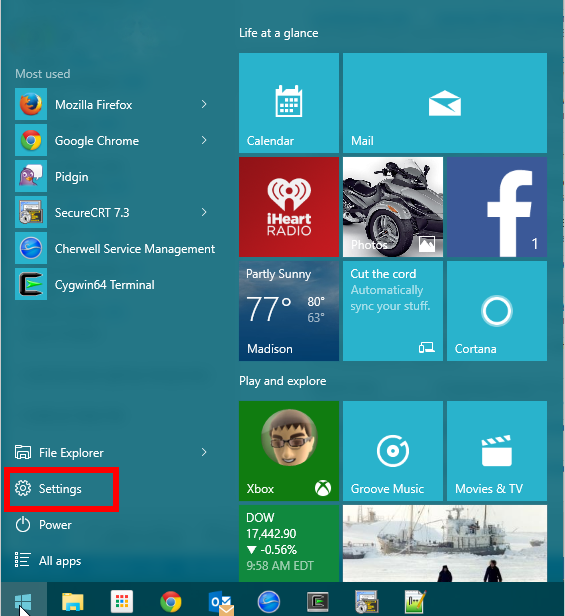
Open the Start menu.
-
Click on Settings.
-
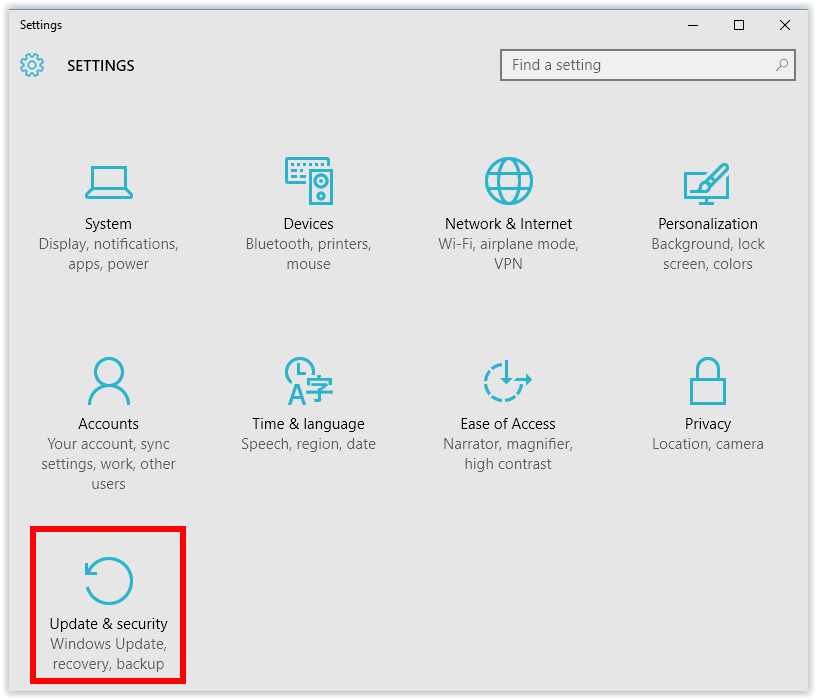
Select Update & security.
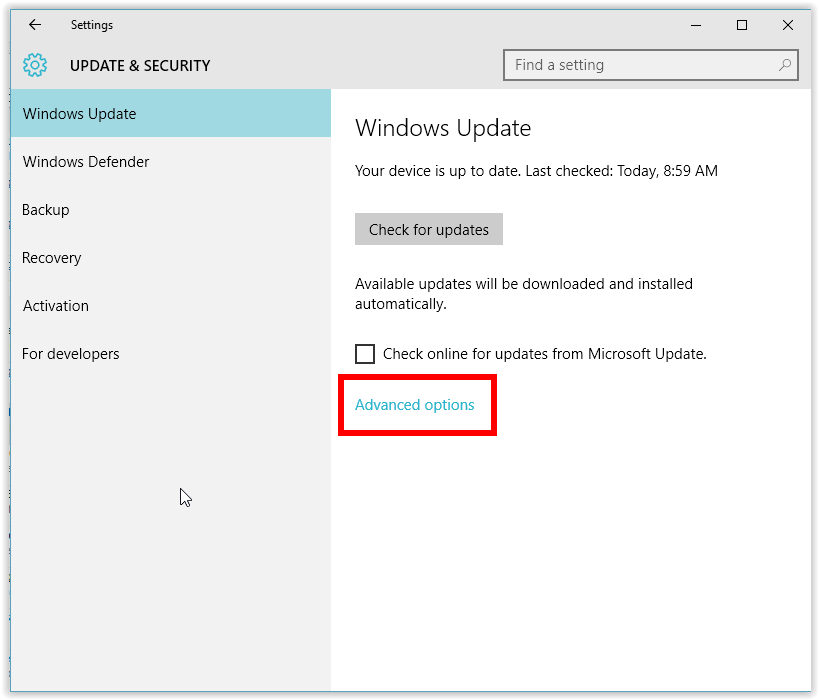
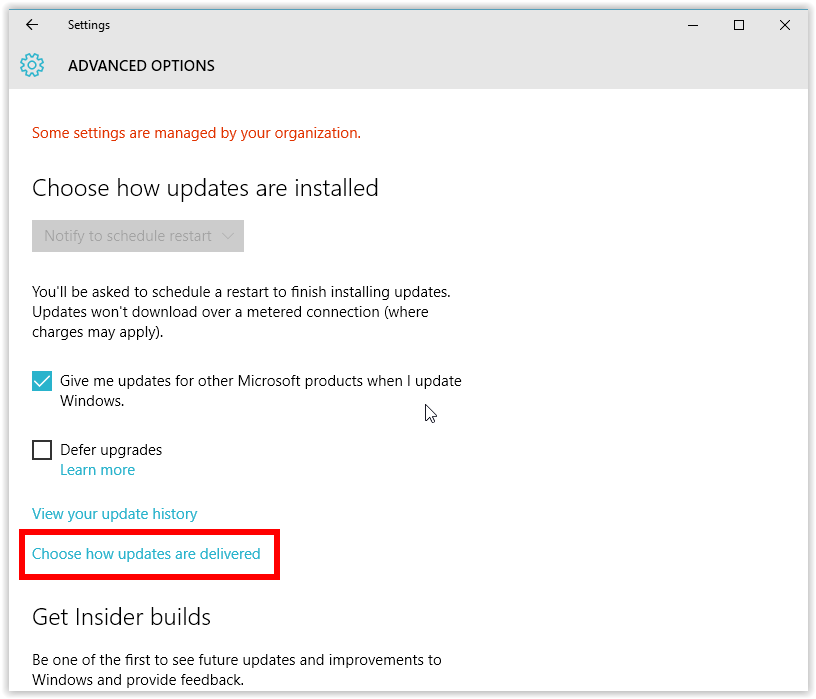
- Click Advanced options.
- Then click Choose how updates are delivered.
-
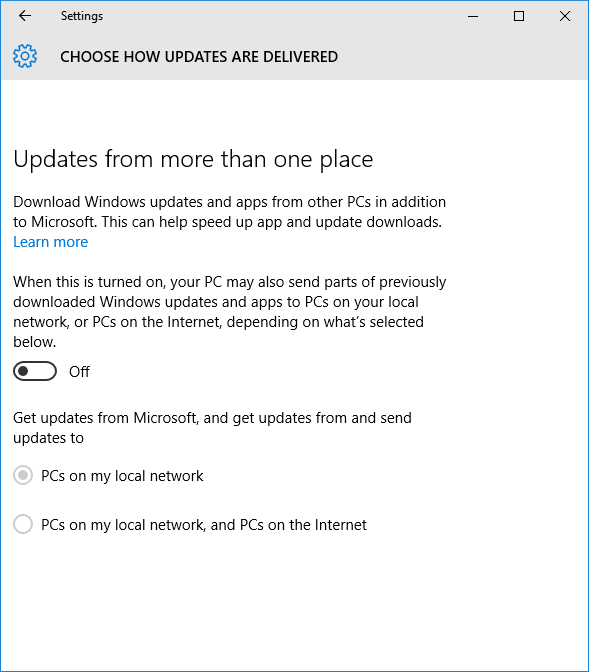
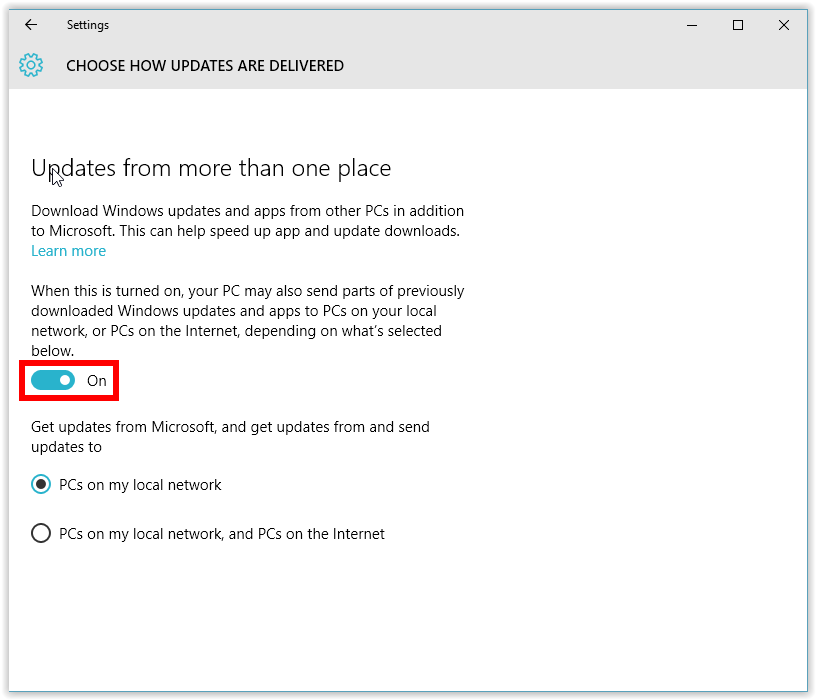
Once in the next window, toggle the switch (shown in On mode in the image below) from On to Off.
-
Once you have successfully disabled peer-to-peer updating for your Windows 10 system, the final screen should look like the one below. You can then exit by clicking the X in the top right corner of the window.