
Microsoft Office 2007/2010/2013/2016 (Windows) - Repairing Corrupted Program Files
This document explains how to correct Microsoft Office if it is not working or crashes frequently. These solutions apply to Office 2013, 2010 and 2007. For Office 2003 and earlier versions, see [Link for document 479 is unavailable at this time]. Sometimes, you have to completely remove and reinstall Microsoft Office to fix corruption issues: [Link for document 12800 is unavailable at this time]
Symptom:
One of the Microsoft Office programs (Word, Excel, PowerPoint, Access, Outlook, etc) is behaving oddly, or not working at all.
Cause:
A necessary Office file may have been deleted, or a file used by the Office application was corrupted during a program crash or your computer's hardware may be at fault.
Solution:
Office 2016
- Click on the start button and type in Programs and Features. This step works for Windows Vista/7/8/8.1/10.

- Find Microsoft Microsoft 365 ProPlus .... If you have office installed in a different language, then ending may not be exactly the same as the picture below.Select change.
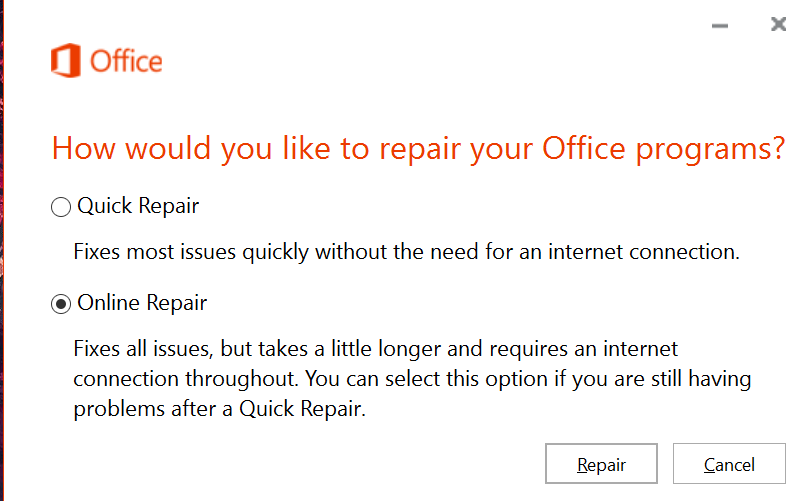
- Select Online Repair for the best chance of fixing the issue. You will need to close all Microsoft programs before clicking repair, this includes Skype. This may take some time, depending on your Internet connection and your computer.
- Partway through the repair process, your computer will look like the image below. This is normal, once it is fully done, click close and attempt to use a Microsoft program.

Office 2010/2013
-
To begin, click on Start and then Control Panel.

-
After the Control Panel window opens, click on Uninstall a Program.

-
A list of all installed programs should now appear. Highlight Microsoft Office 2010, and click on Change.

- Note: The exact title of Microsoft Office 2010 may depend on the version installed on your computer.
-
After the dialog box loads, choose the Repair option and click Continue.

-
This process may take a few minutes, but after completion, you will be prompted to exit and restart any open Office programs. You may then click Close. You may be prompted to reboot your computer to apply all changes and complete setup.

Office 2007
-
To begin, go to the Start Menu > All Programs > Microsoft Office > Microsoft Office Tools, and then click on Microsoft Office Diagnostics.

-
After Microsoft Office Diagnostics opens, click Continue on the first page.

-
By default, all of the diagnostic tests are enabled, so you may click on Run Diagnostics to proceed with diagnosis and repair.

-
For a summary of each diagnostic, visit Microsoft's site.
-
Note: You may be asked to insert the Office 2007 installation disk during the Setup Diagnostic.
-
-
After running the diagnostics, a results page will be displayed. After clicking continue, your web browser will load with Microsoft's recommendations for the next steps to resolve any discovered issues with Microsoft Office.
