
Kaltura v7 Accessibility and Usability Information
Last evaluated June 2024
Get help
-
Kaltura MediaSpace is part of the Learn@UW suite of learning technologies. For accessibility or usability assistance with Kaltura, contact learnuwsupport@wisc.edu.
- Contact the DoIT Help Desk for general technical assistance. Instructors and instructional staff can also request a consultation with a DoIT Academic Technology consultant to discuss using Kaltura MediaSpace.
Additional resources
-
Kaltura Overview, UW-Madison (KnowledgeBase document)
-
For additional support documentation, refer to the additional Kaltura Knowledgebase articles.
Accessibility and usability barriers
Note: As of 2024, Learn@UW supports the latest version of Kaltura, called v7. This accessibility KB document is for Kaltura v7. The older version of Kaltura (v2) is still available on campus and has its own accessibility KB document.
Currently, only the v7 media player in Kaltura supports displaying extended audio descriptions for accessibility. The older v2 media player does not support the display of extended audio descriptions. To update to the Kaltura v7 player, please re-embed your older video content from 2024 and earlier.
Kaltura v7
The following information is not a comprehensive list of accessibility barriers, but gives a sample of the kinds of barriers the product has.
Keyboard navigation color contrast barriers may limit access for people with motor disabilities and people with low vision
Some keyboard focus indicators are missing a top, bottom, left, or right side. Some keyboard focus indicators do not have strong contrast, which makes it difficult to follow the keyboard navigation. See Figure 1.
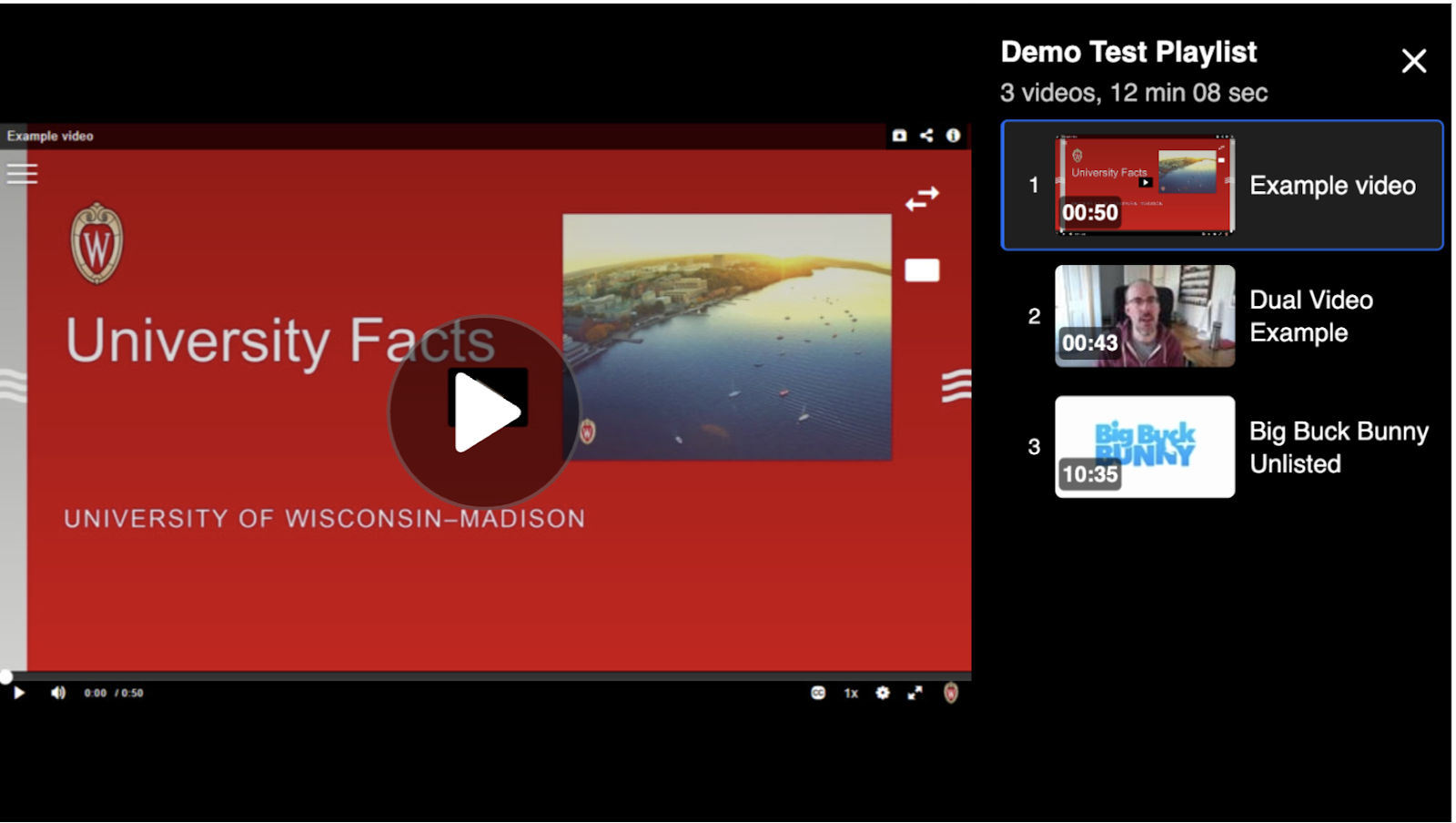
Figure 1 caption: The dark blue keyboard focus around the black playlist background does not meet color contrast standards.
Unexpected keyboard navigation might create barriers for some users
Keyboard navigation requires some unexpected interactions, such as accessing volume controls, where a keyboard-user tabs to a button labeled mute (which is different conceptually). See Figure 2.
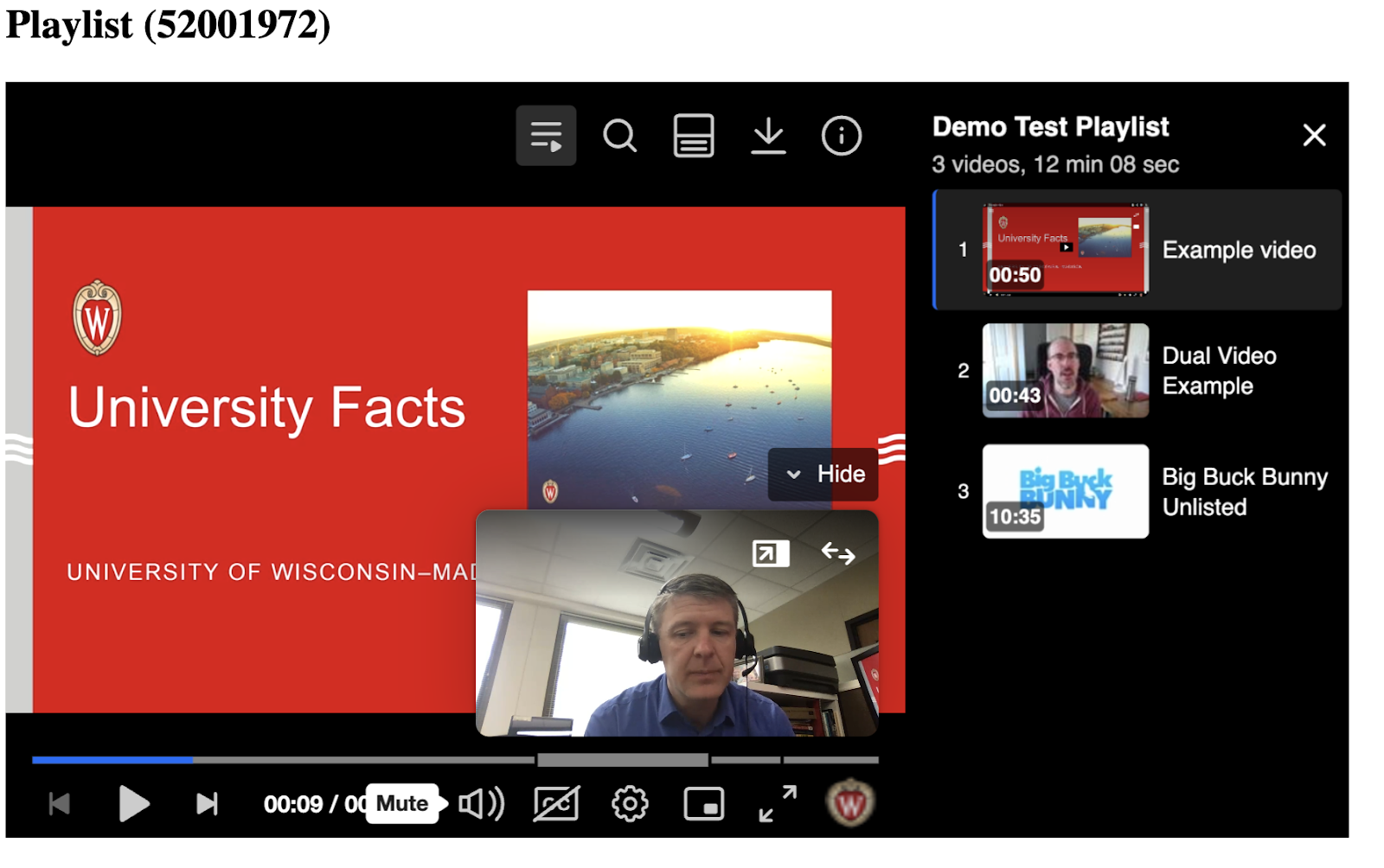
Figure 2
Magnification and reflow barriers exist, creating barriers for people with low vision
At 300% and higher magnification, the controls for the video player are not visible, when it is embedded in Canvas. Additionally, part of the screen is cut off. See Figure 3.
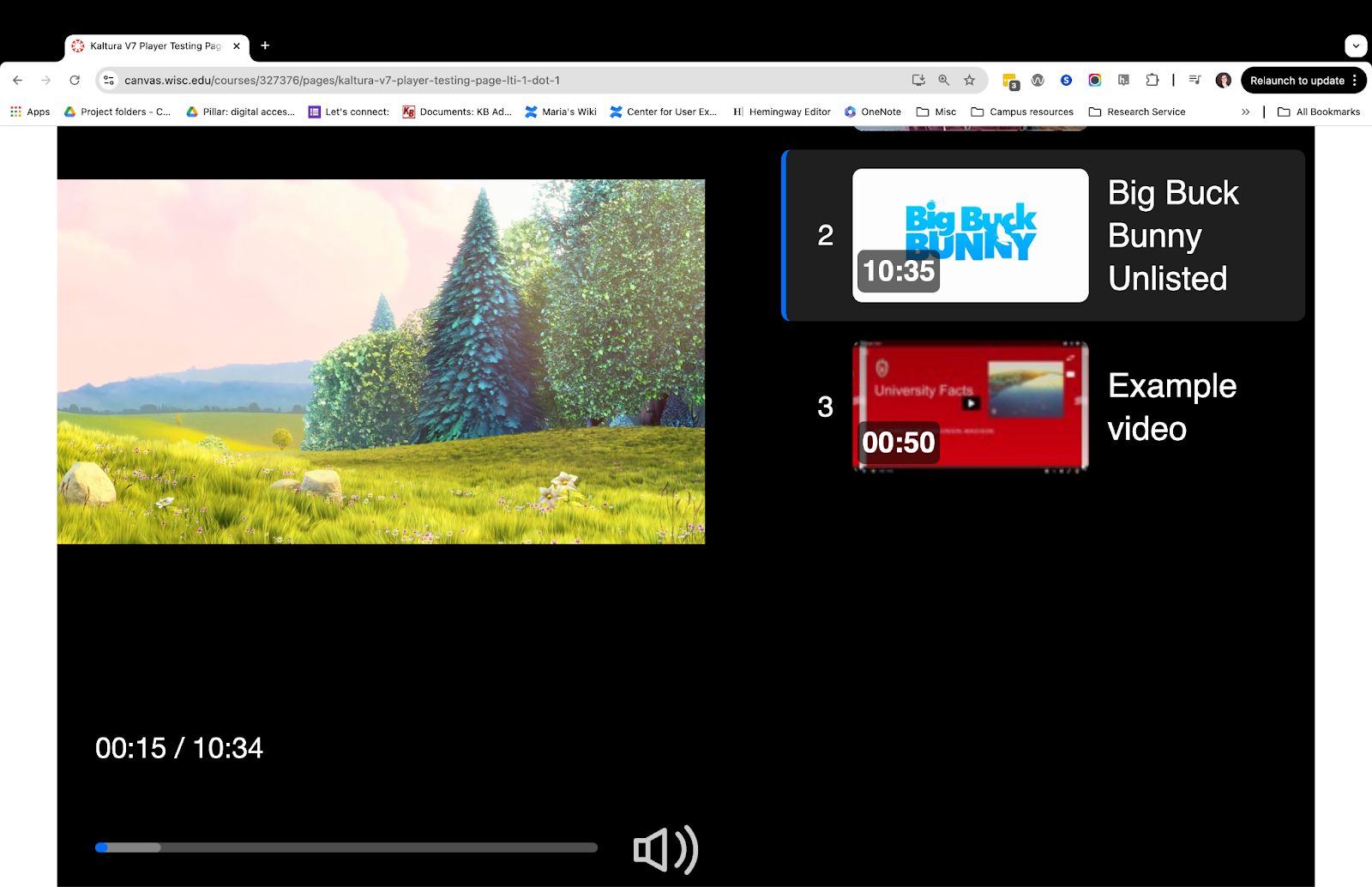
Figure 3
Screen reader barriers might limit access for some users who are blind or who otherwise use assistive technology to navigate
When a screen reader first enters the web area for any of the frames (playlist, dual video, and quiz each had their own frame in the test environment) the focus would land on the play button, but the screen reader wouldn’t announce the play button until a user navigates away and then back to the button.