

KB User's Guide - General Info - Manage Your Favorite Documents (for Internal Site only)
Designate a Document as a Favorite
Add and manage Favorite documents in your Internal KB site quickly and easily. The links you save are stored so you can access them from any device.
-
On your internal KB site, find and open the document you would like to save as a Favorite.
-
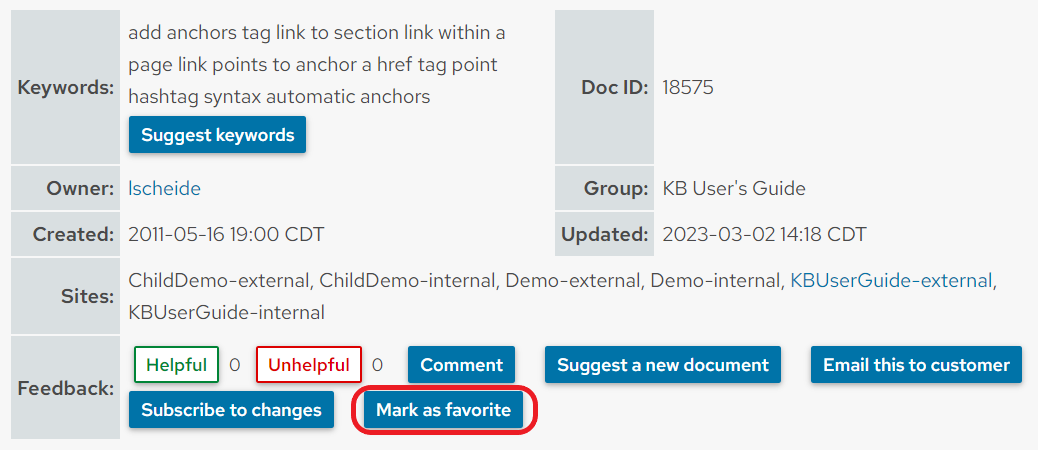
Go to the very bottom of the document to the Document Information Table. Click on the Mark as favorite button.
-
After you click on the Mark as favorite button, the "Mark as Favorite" button will be replaced with the message "Marked as favorite. You may reload this page and unmark as favorite".

Remove the Favorite Designation
To remove a favorite designation, scroll to the very bottom of the document or the Document Information Table and find the Unmark as favorite button. If you just used the "Mark as favorite" button, you will need to reload the page to get the "Unmark as favorite" button.
The "Unmark as favorite" button wil be replaced by the message "Unmarked as favorite. You may reload this page and mark as favorite again". You may reload this page and Mark as favorite will appear once again.

Display all documents with the Favorite Designation
In the search field of your live internal KB site, enter the "Quick Search" option of showmyfavoritedocs to display your list. The image below shows the "showmyfavoritedocs" in the search field of the internal Demo KB site, along with the 3 "favorited" documents.
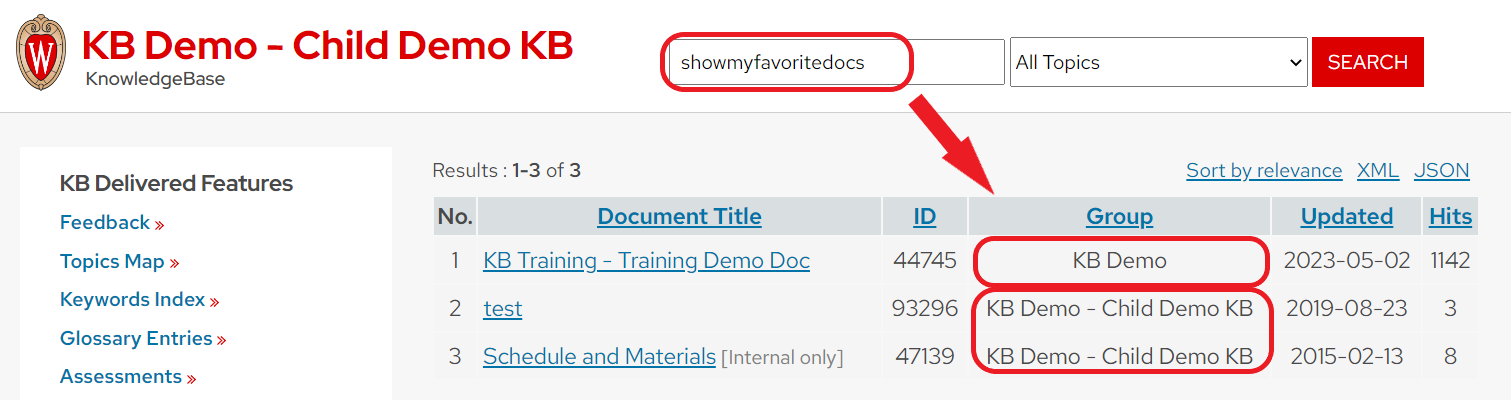
- Note: In the image above, there are three "Favorited" documents from two distinct KB Spaces; the KB Demo Site and the Child Demo KB site. You can Favorite documents owned by other KB groups, provided they have been shared with your internal site. Your "Favorited" documents will display on one screen as long as they are available in that site.
Search Among Your Favorites
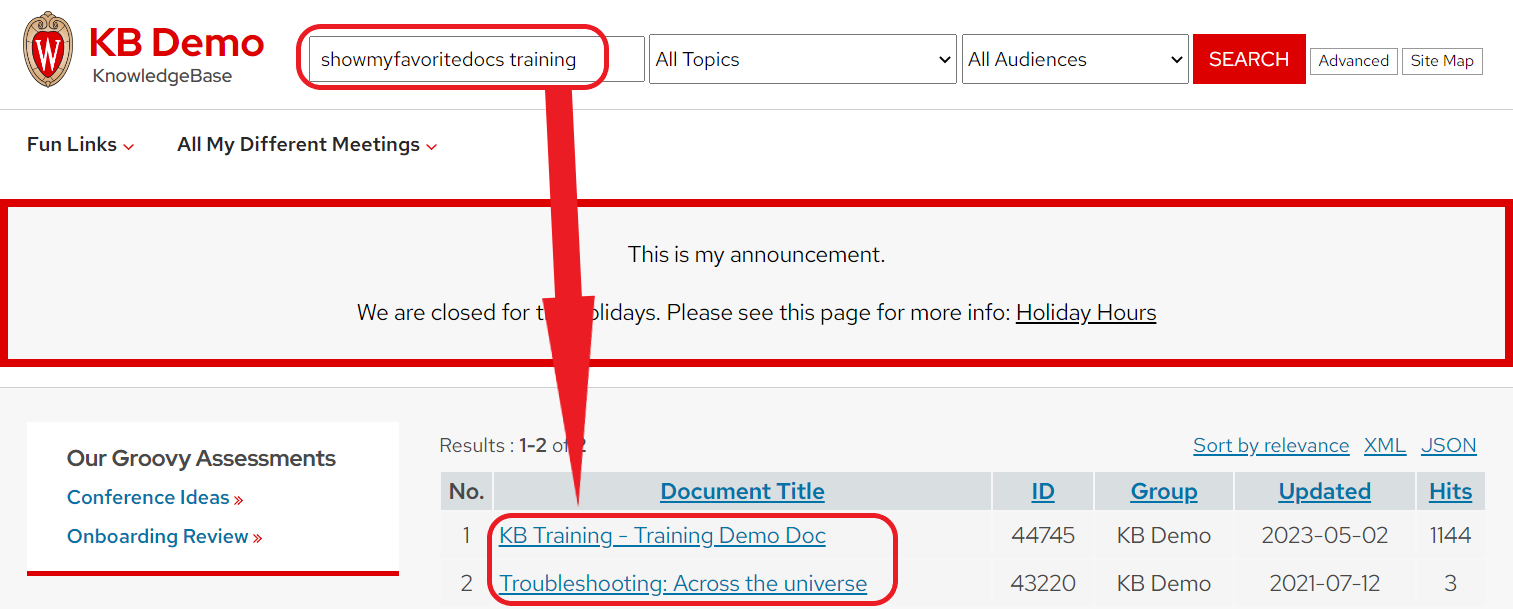
You may search by keyword among your designated favorites by typing "showmyfavoritedocs" in the Search field and a keyword(s). The image below displays all the "Favorited" documents that have a keyword of "training".
For more information on other "Quick Search" options, see, KB User's Guide - General Info - Quick Search Options.