

Locating the Name of Your Computer
In many cases, a computer name is needed to perform in-depth troubleshooting. This document will help you locate your computer name, also known as the "hostname." Each section includes basic and advanced methods of lookup.
Windows
Windows 11
Windows 11 - Graphical Method
- Click on the Windows Start Button and select the Settings icon.

- In the settings menu, click the System option in the left-hand bar.
- At the bottom of the System page, select About on the right-hand pane.

- Under the Device Specifications bar, you will find the device name under Device name.

Windows 10
Windows 10 - Command Line Method (Advanced)
- Move your cursor to the lower left corner of the screen until you see a small image appear. If you are currently viewing the Desktop, the windows icon (
 ) should be a shortcut to the Start screen.
 - Right-click this box to reveal the Windows Quick Access Menu. Type Control Panel in the search box and select Control Panel in the results.
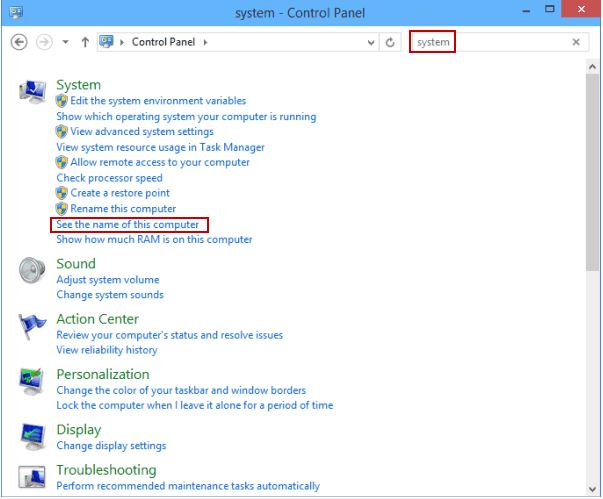
- Input System in the top-right search box and then click on See the name of this computer.
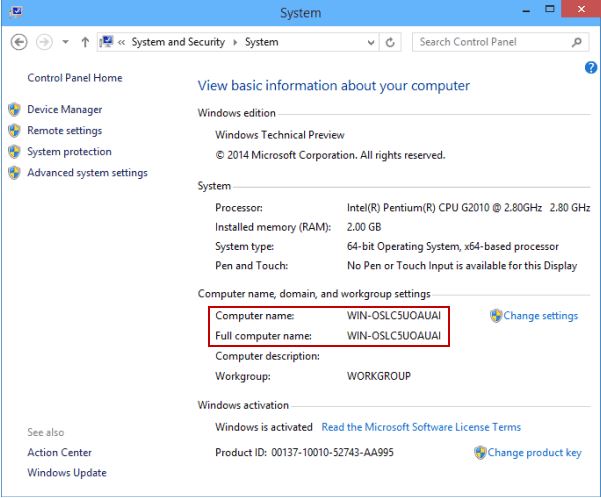
4. View the computer name or full computer name under Computer name, domain, and workgroup settings.
Windows 10 - Graphical Method
- Click on the Start Menu (Windows Icon) in the lower left hand corner of your screen.
- Right-click on this box to reveal the Windows Quick Access Menu. Click into the search box at the bottom and type in Control Panel, then click on the top result.

3. Open System and Security.

4. Select System.

5. The full computer name will be listed under the "Computer name, domain, and workgroup settings" section.

Windows 8
Windows 8 - Command Line Method (Advanced)
-
Move your mouse cursor to the lower left corner of the screen until you see a small image appear. If you are currently viewing the Desktop, this image should be a shortcut to the Start screen, and vice-versa:

-
Right-click on this box to reveal the Windows Quick Access Menu. Click on Command Prompt in this menu.

- In the prompt, type the word "hostname" without quotes and hit enter.
-
Your computer's name is the output of this command:

Windows 8 - Graphical Method
-
Move your mouse cursor to the lower left corner of the screen until you see a small image appear. If you are currently viewing the Desktop, this image should be a shortcut to the Start screen, and vice-versa:
-
Right-click on this box to reveal the Windows Quick Access Menu. Click on System in this menu.

-
The computer name will be listed beneath "Computer name, domain, and workgroup settings."

Mac
macOS Tahoe
- Click on the Apple Logo in the upper left-hand corner of your screen.
- Click “About this Mac”.
- Click on the 'More Info' button
- The name of your Computer will be displayed here.