

DARS/Students - Request a DARS audit for a declared major/certificate

Overview
These instructions only relate to how to complete the process in the Course Search & Enroll app.
For information on where to find the DARS audit request page within Course Search & Enroll app, see DARS/Students - Start the DARS audit request process.
To learn how to read a DARS audit report, reference DARS/Students - Read a DARS audit report.
Steps
- Click the "Run new degree audit" button in the Degree Audit section.

- Select your academic plan/program. Only those programs in which you are currently declared will be listed. If you have more than one, use the radio buttons to select the applicable program.

- Click the "Next" button.

- Choose your audit settings. You can choose to include:
- Previous, current, future, and planned terms: Includes courses already completed, enrolled courses that are in progress, enrolled courses that have not started, and courses in the degree planner from future terms that are not enrolled.
- Previous, current, and future terms: Includes courses already completed, enrolled courses that are in progress, and enrolled courses that have not started.
- Previous and current terms: Includes courses already completed and enrolled courses that are in progress.
- Previous terms: Includes courses already completed.
- Note: For additional instructions on including planned courses within a student-requested DARS audit, see DARS/Students - Request a DARS audit for a declared major, including planned courses

- Click the "Request audit" button.
- The newly-requested audit will appear on the top line of the "Completed Audit Requests" page.
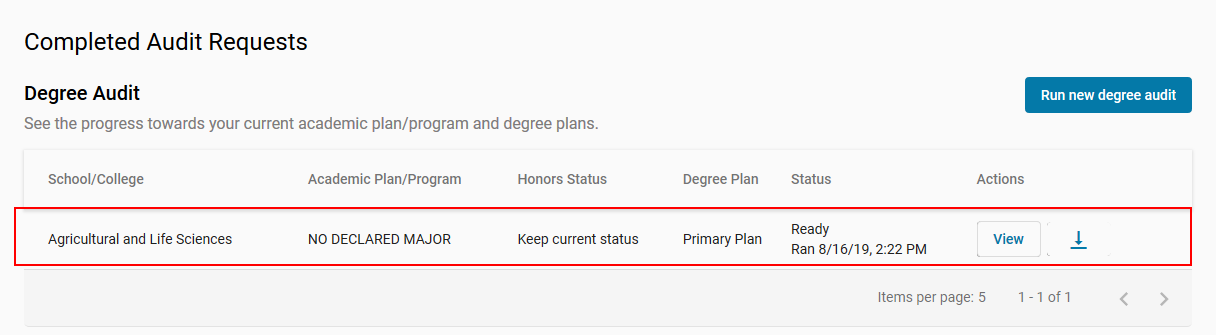
- Click the "View" button to see the audit.

- Select the download icon to save a PDF format of your audit to your computer.

For more information about the format of the CS&E app view of the DARS audit and the symbols used, see DARS/Students - Read a DARS audit report.