Lumen/Guide: How to Edit Governed Content in Guide (Navigating to Lumen Programs)
Step-by-step tutorial on how to navigate and edit a Lumen Program for content that displays in Guide.
- Navigate to Lumen Programs.
- Access via the Lumen widget in MyUW or through this direct link to Lumen Programs. You will need to login. See the Lumen/Guide Access KB if you receive an permissions error.
- Search for your program in the box to the left of the "Search" button either by SIS code or Title. If navigating from the Guide editing environment, you will not have to search for your program. Asterisks are your friend and will pull anything before and after ex: "*Art*" will pull Art History, Art Education, Business: Arts Administration, etc. Edit the program proposal you wish to add/edit.
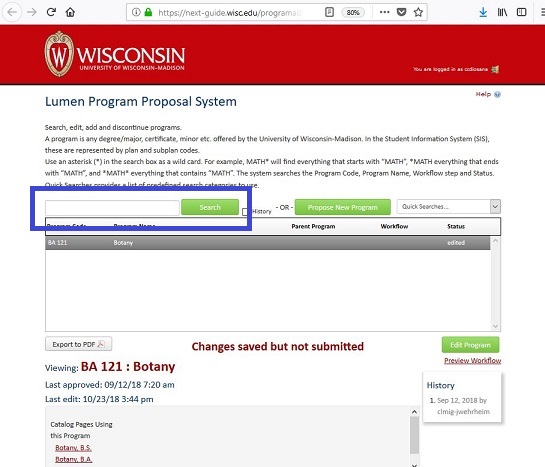
- Click "Edit Program." The Lumen Programs landing page with the "edit program" button on the right side of the page circled in blue.

-
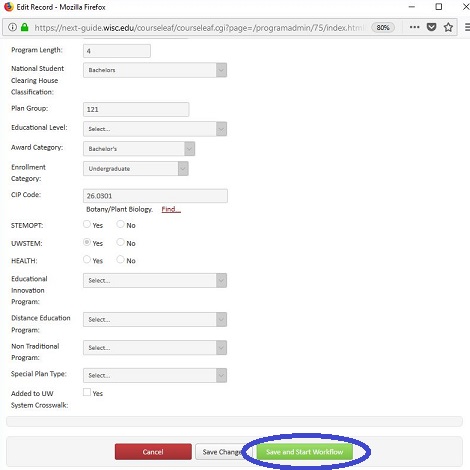
A new window will open where you can make changes to governance required fields. You will need to fill out all required fields that are empty. Make sure to click the "Save Changes" button frequently as the system does not auto-save.

-
Once finished, scroll to the bottom of the form and click "Save and Start Workflow." This will advance your page through workflow and you will not be able to edit until it is rolled back to you or has completed workflow (this will correspond with a publication date, so plan wisely).